> ## Documentation Index
> Fetch the complete documentation index at: https://docs.winedirectfulfillment.com/llms.txt
> Use this file to discover all available pages before exploring further.
# Fulfillment Homepage Dashboard
> The WineDirect Fulfillment dashboard provides an overview of the client’s account, including customizing report widgets, open orders, orders imported by day, current shipments by status, recent transfers, and additional news and memos by WineDirect Fulfillment. In this article, we will cover all sections of this dashboard, defining each title and offering instructions on how best to utilize all of these widgets for intuitive and seamless order management.
## Updated Fufillment Portal Dashboard
We’re continually working to deliver timely updates that enhance your experience with the Fulfillment Portal. Here are the improvements you can expect:
### Phase 1 Enhancements:
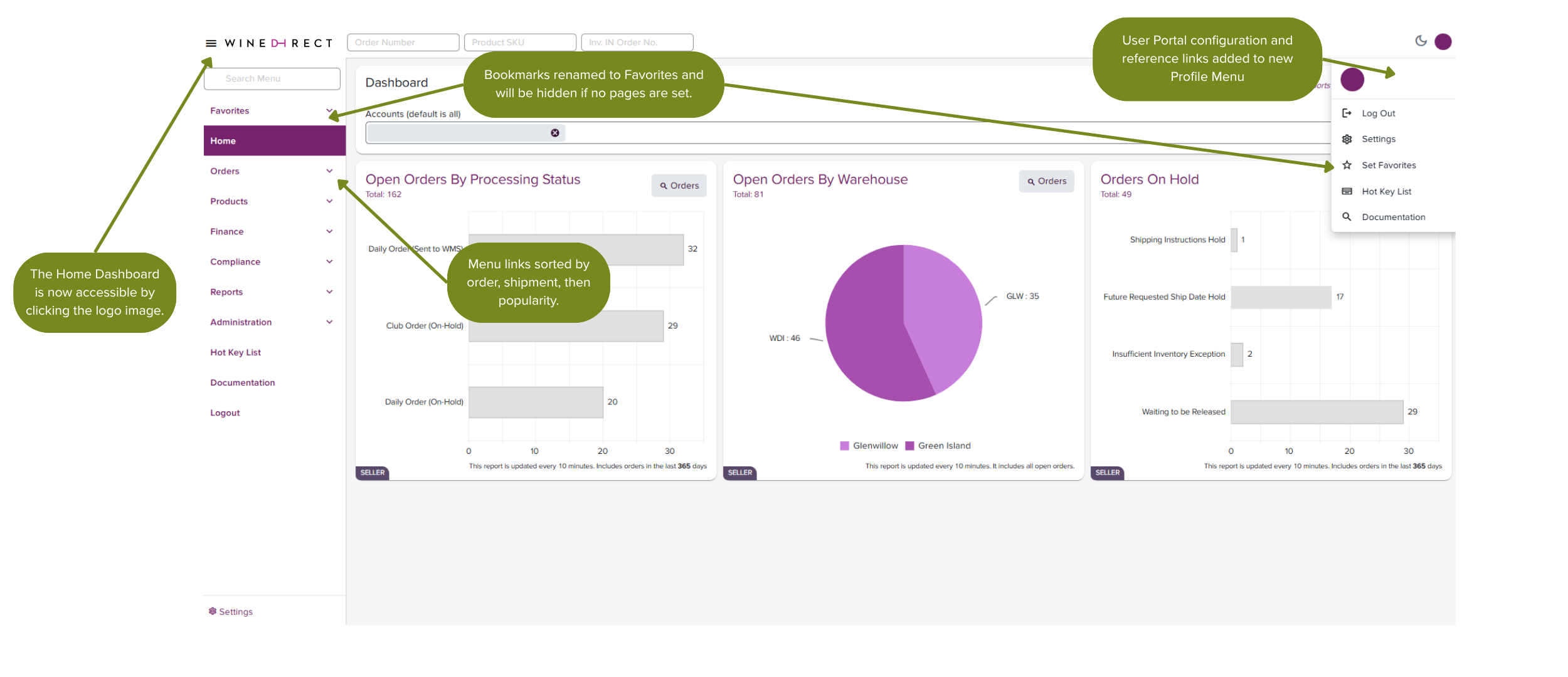
* **Updated Profile Menu:** Located in the upper right corner for easier access to key settings.
* **Clickable Logo:** Quickly return to the Home Dashboard page by clicking on the logo.
* **Favorite Pages:** Bookmarks have been renamed to Favorites and will be hidden if no pages are set.
* **Reorganized Order Links:** Now grouped by order and shipping tools, sorted by popularity for quicker navigation.
 ### **Phase 2 Enhancements:**
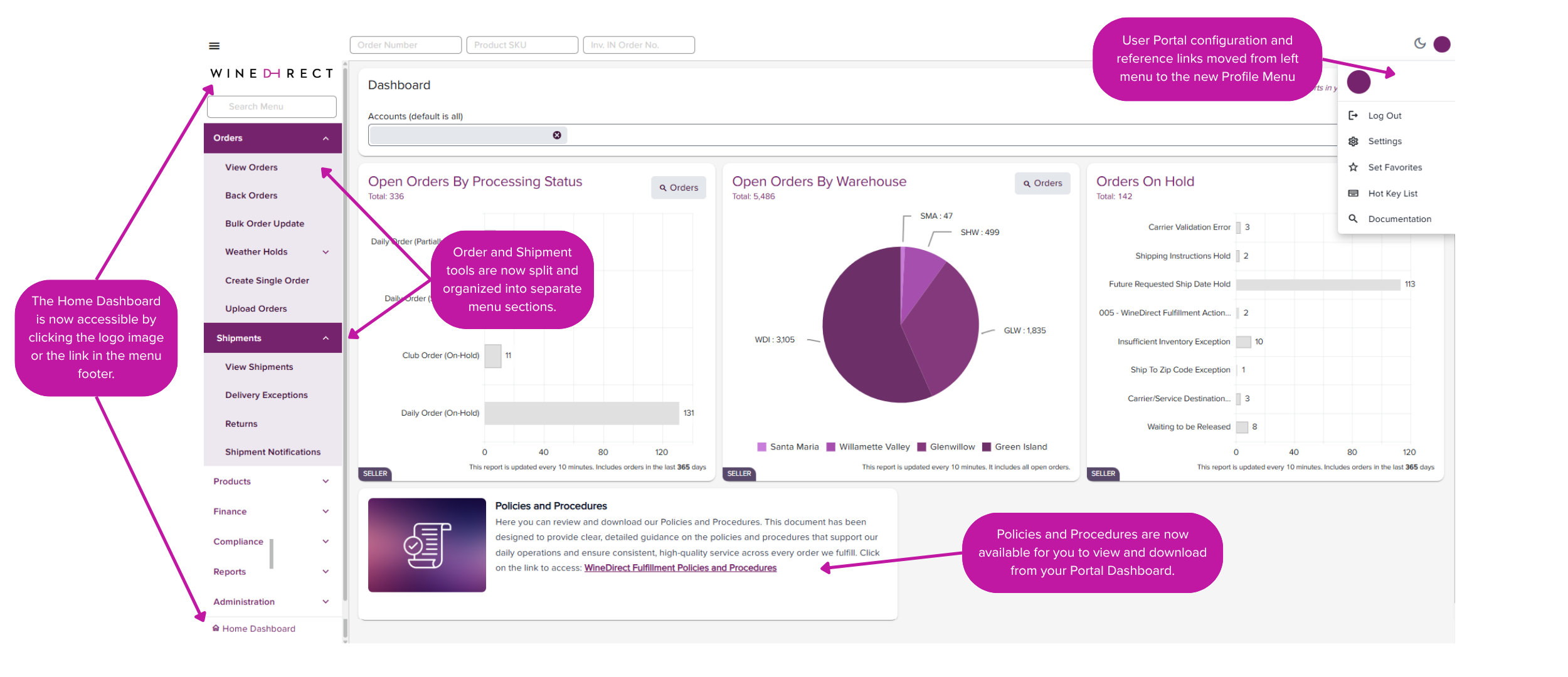
* **Streamlined Left Menu**: Some links have been relocated to improve usability.
* Home Dashboard
* Hot Key List
* Documentation
* Logout
* Settings
* **Orders and Shipments**: These links are now split into separate menu sections for better clarity.
* **Policies and Procedures:** Your copy of WineDirect Fulfillment’s Policies and Procedures is now accessible to view and download through your Fulfillment Portal Dashboard.
### **Phase 2 Enhancements:**
* **Streamlined Left Menu**: Some links have been relocated to improve usability.
* Home Dashboard
* Hot Key List
* Documentation
* Logout
* Settings
* **Orders and Shipments**: These links are now split into separate menu sections for better clarity.
* **Policies and Procedures:** Your copy of WineDirect Fulfillment’s Policies and Procedures is now accessible to view and download through your Fulfillment Portal Dashboard.
 **Customizing Report Widgets on Dashboard** \
The new interface now allows the user to specify which order information they wish to see compiled on the dashboard. These preferences can be configured by clicking on the gear symbol titled ‘Reports’. A box will populate, allowing the user to select which reports to appear on their customized dashboard.
Selecting or deselecting the report options will save these preferences and generate information that appears on the dashboard in an itemized widget format.
* **SELLER vs SUPPLIER:**
* For parent-brands: the system will now differentiate between SUPPLIER when looking at transfers
* All other standalone accounts will produce the same account information
### Below is a list of terms and their functions, which are displayed on the Homepage
**Customizing Report Widgets on Dashboard** \
The new interface now allows the user to specify which order information they wish to see compiled on the dashboard. These preferences can be configured by clicking on the gear symbol titled ‘Reports’. A box will populate, allowing the user to select which reports to appear on their customized dashboard.
Selecting or deselecting the report options will save these preferences and generate information that appears on the dashboard in an itemized widget format.
* **SELLER vs SUPPLIER:**
* For parent-brands: the system will now differentiate between SUPPLIER when looking at transfers
* All other standalone accounts will produce the same account information
### Below is a list of terms and their functions, which are displayed on the Homepage
 ### Open Orders By Processing Status
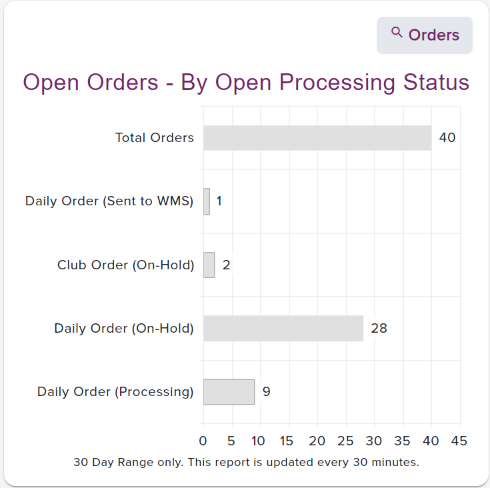
The Open Orders - by Open Processing Status graph will display all orders currently in the system for the selected client. Of all open orders, they will be segmented based on their Order Type, Order Hold & Order Status (whether they are Processing or Sent to WMS/Fulfilling). As displayed, the graph will only populate a date range of 30 days and is automatically refreshed every 30 minutes. Clicking on the magnifying glass Orders button will redirect the user to the View Orders in the Fulfillment System page where a search query can be run on several different fields of order results. We will cover more on the View Orders in the Fulfillment System page later on.
### Open Orders By Processing Status
The Open Orders - by Open Processing Status graph will display all orders currently in the system for the selected client. Of all open orders, they will be segmented based on their Order Type, Order Hold & Order Status (whether they are Processing or Sent to WMS/Fulfilling). As displayed, the graph will only populate a date range of 30 days and is automatically refreshed every 30 minutes. Clicking on the magnifying glass Orders button will redirect the user to the View Orders in the Fulfillment System page where a search query can be run on several different fields of order results. We will cover more on the View Orders in the Fulfillment System page later on.
 ### Orders on Hold:
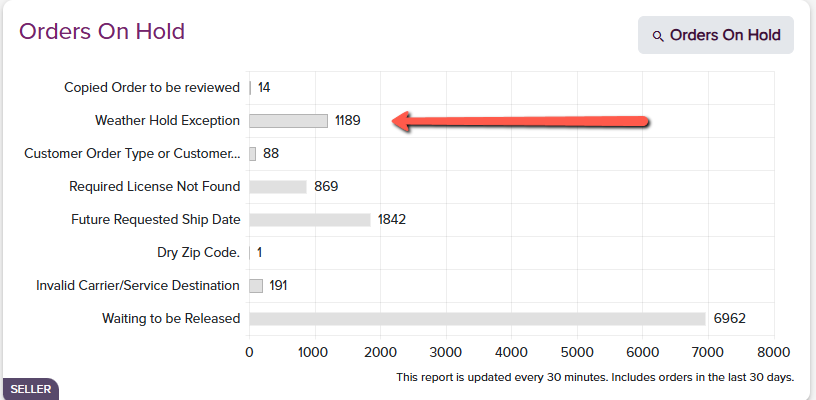
This widget will list all orders under the account that are on hold, and the cumulative result of orders under any specific hold. The client can click on any particular hold and be taken to the View Orders page, which will take them to the full detailed list of held orders to export as a whole or view independent details.
### Orders on Hold:
This widget will list all orders under the account that are on hold, and the cumulative result of orders under any specific hold. The client can click on any particular hold and be taken to the View Orders page, which will take them to the full detailed list of held orders to export as a whole or view independent details.
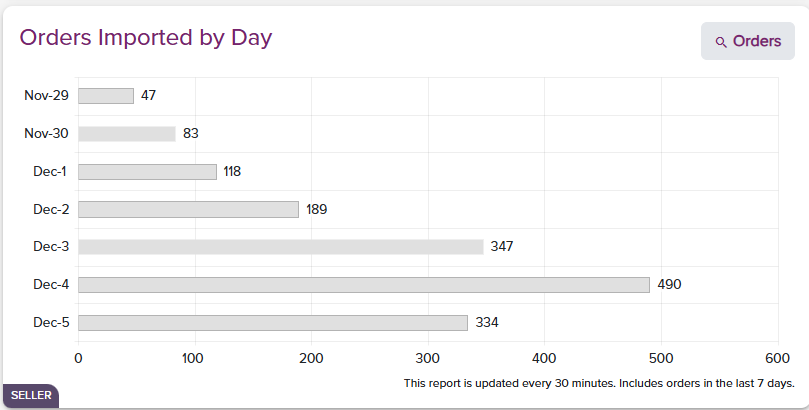 ### Recent Orders by Type
This graph will populate the list of orders per Seller and allocate them into the Order Types in which they were processed. Clicking into any Order Type will navigate the client to the View Orders chapter to allow the user to view the information itemized.
### Recent Orders by Type
This graph will populate the list of orders per Seller and allocate them into the Order Types in which they were processed. Clicking into any Order Type will navigate the client to the View Orders chapter to allow the user to view the information itemized.
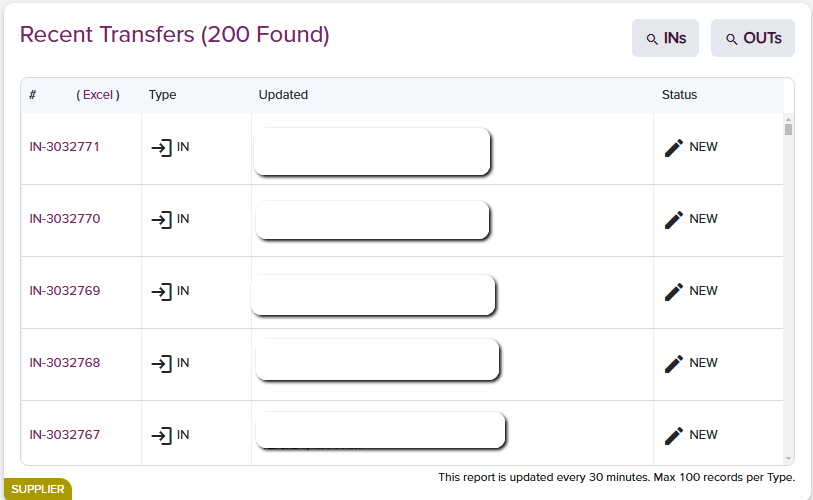 ### **Recent Transfers**
The recent transfers widget provides a report of all transfer submissions that have been created for the account selected. The **IN** submission #, **Type** of transfer, **User, Date & Time** of submission, and **Status** will all populate. Up to 100 records will be listed per type and are available for the user to download via Excel.
### **Recent Transfers**
The recent transfers widget provides a report of all transfer submissions that have been created for the account selected. The **IN** submission #, **Type** of transfer, **User, Date & Time** of submission, and **Status** will all populate. Up to 100 records will be listed per type and are available for the user to download via Excel.
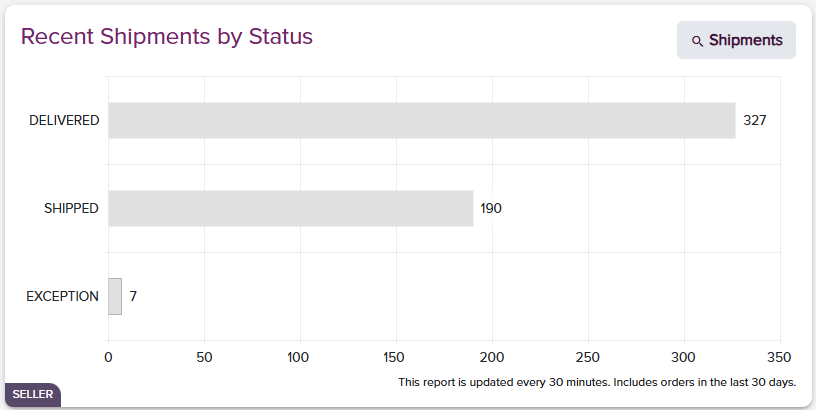 ### Recent Shipment by Status
This graph will display all orders that have shipped within a specific time period. As in the previous graphs, the user can specify the date range between 1 and 30 days. Clicking on the Shipments tab will bring the user to the View Shipments page, where further search inquiries can be pulled related to shipment data.
### Dashboard News
### Recent Shipment by Status
This graph will display all orders that have shipped within a specific time period. As in the previous graphs, the user can specify the date range between 1 and 30 days. Clicking on the Shipments tab will bring the user to the View Shipments page, where further search inquiries can be pulled related to shipment data.
### Dashboard News
 ### Open Orders by Warehouse
The customized home dashboard includes a report that lists all open orders originating from any WineDirect Fulfillment facility that the client has been configured to fulfill from.
### Open Orders by Warehouse
The customized home dashboard includes a report that lists all open orders originating from any WineDirect Fulfillment facility that the client has been configured to fulfill from.
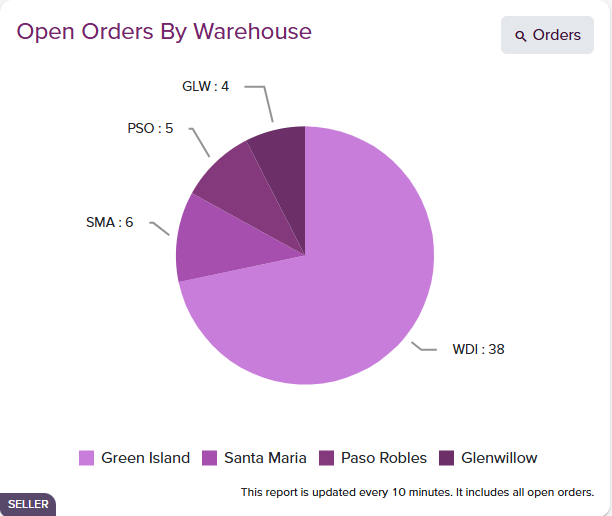 For this graph to populate within the client dashboard, the client must select the option by clicking the Reports button and then selecting Open Order by Warehouse within the menu:
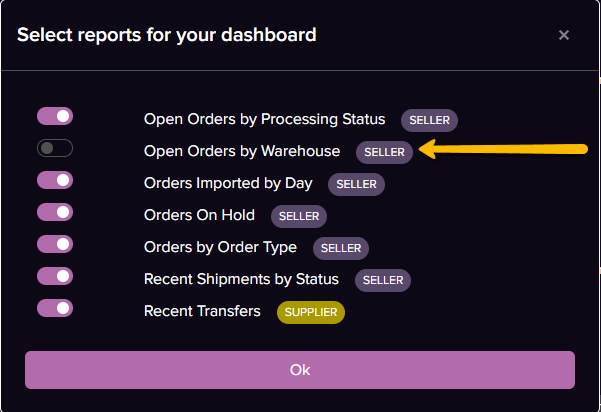 Once the graph has been populated, the client can click on any facility listing the total amount of shipments, and will be redirected to the View Orders page, where the fields will auto-populate, filtering down the facility and total amount of orders originating out of each facility and any holds that the orders may be associated under.