> ## Documentation Index
> Fetch the complete documentation index at: https://docs.winedirectfulfillment.com/llms.txt
> Use this file to discover all available pages before exploring further.
# WineDirect Fulfillment Integration: Commerce7
> The WineDirect Fulfillment integration application is an app built to seamlessly integrate your front-end ecommerce with your back-end fulfillment provider. Automatically create products that exist in C7 into WineDirect Fulfillment. Automatically track inventory levels in WineDirect Fulfillment in your C7 environment.
### **Features:**
* Inventory Sync
* Inventory Sync Report
* Product Sync
* Email Notifications
* Manual inventory sync error report
* Nightly inventory sync report (2 am send)
* Order Submission
* Tracking Flow
**New Clients:** If you are a new client, the Onboarding team and your Account Manager will provide you with the integration API credentials.
**Existing Clients:** If you are an existing client and just connecting C7 with your WineDirect Fulfillment account, let your Account Manager know, and we’ll generate the necessary API credentials.
### **How to Set Up the Integration**
1. Connect with your WineDirect Fulfillment Account Manager to obtain your API credentials.
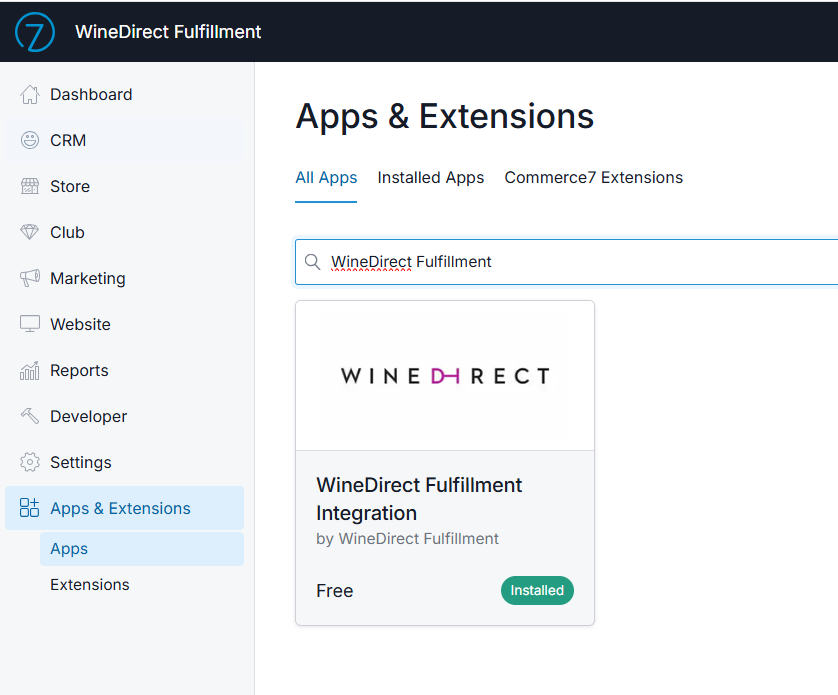
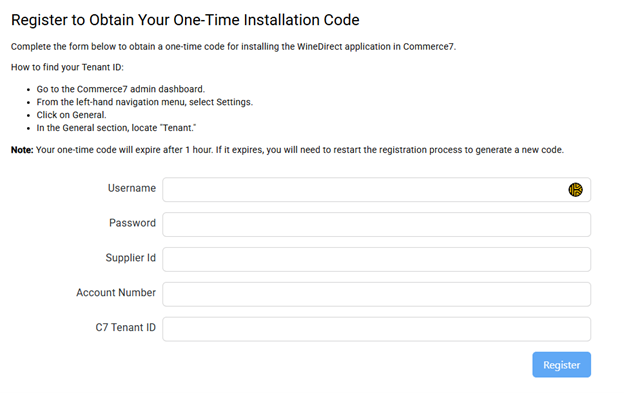 2. Install the WineDirectFulfillment app in your **Commerce7 Apps Store**:
 ## Inventory Sync
Once installed, you can quickly and easily manage your integration settings within your C7 portal.
1. Under **Settings >Locations**, you'll need to set up an inventory location for product inventory to sync correctly:
## Inventory Sync
Once installed, you can quickly and easily manage your integration settings within your C7 portal.
1. Under **Settings >Locations**, you'll need to set up an inventory location for product inventory to sync correctly:
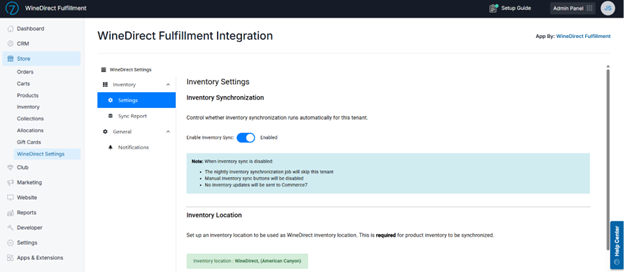
 2. You can then further manage your Inventory and Product sync through your WineDirect Fulfillment Settings by navigating to your **Store >WineDirect Settings**:
a. **Enable Inventory Sync**: If you would only like to utilize the app for product sync, you can disable inventory sync on a per-tenant basis.\
b. **Global Inventory Sync**: In addition to the once-nightly 2:00 am sync, you can manually trigger a full inventory sync.
2. You can then further manage your Inventory and Product sync through your WineDirect Fulfillment Settings by navigating to your **Store >WineDirect Settings**:
a. **Enable Inventory Sync**: If you would only like to utilize the app for product sync, you can disable inventory sync on a per-tenant basis.\
b. **Global Inventory Sync**: In addition to the once-nightly 2:00 am sync, you can manually trigger a full inventory sync.
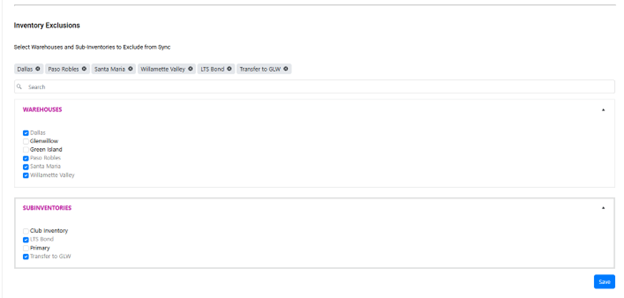
 3. Inventory Exclusions: You can filter/restrict which warehouses and/or sub-inventories you would like to exclude from your inventory sync (i.e. Exclude Library sub-inventory wines from the Inventory sync)
 ## Inventory Sync Report
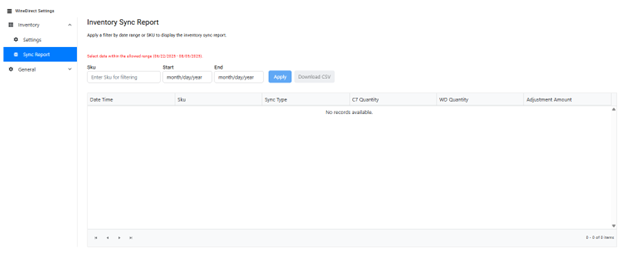
All inventory sync activity is recorded and viewable in the inventory sync report on a rolling 90-day basis. Any adjustments made due to inventory discrepancies between WDI & C7 will be recorded and viewable in a report on a per SKU basis.
## Inventory Sync Report
All inventory sync activity is recorded and viewable in the inventory sync report on a rolling 90-day basis. Any adjustments made due to inventory discrepancies between WDI & C7 will be recorded and viewable in a report on a per SKU basis.
 ### How to understand Inventory Sync
The WineDirect Fulfillment Available to Sell calculation takes the *Sellable Quantity on Hand* in WineDirect Fulfillment and then subtracts *C7 Reserved + C7 Allocated*.
**Example 1:**\
Quantity on Hand in WDF is 600
### How to understand Inventory Sync
The WineDirect Fulfillment Available to Sell calculation takes the *Sellable Quantity on Hand* in WineDirect Fulfillment and then subtracts *C7 Reserved + C7 Allocated*.
**Example 1:**\
Quantity on Hand in WDF is 600
 C7 Available to Sell is 210 with 100 Reserved out of the WDI Fulfillment Location (this is important because only the Available to Sell count from the app’s Fulfillment Location will be updated.)
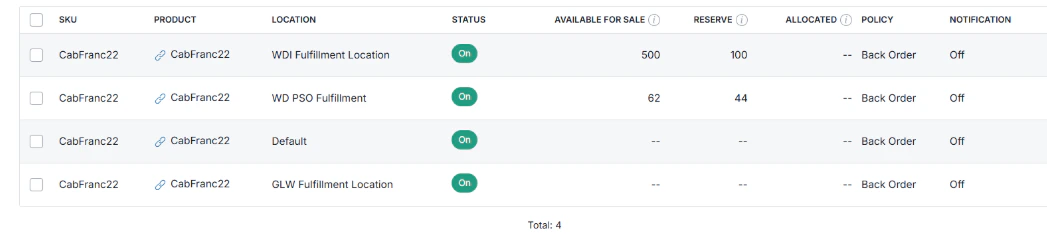
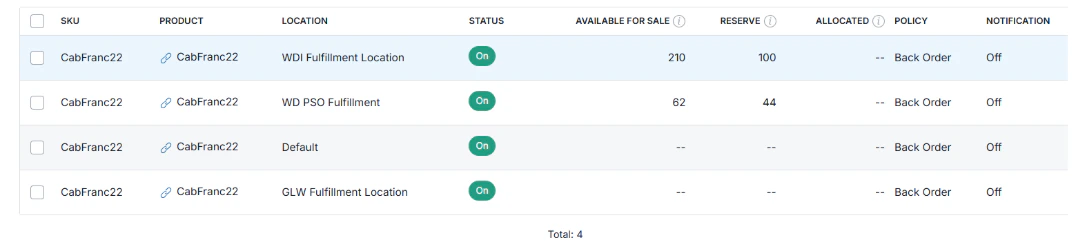 After the inventory sync runs, the *Available to Sell* in C7 will be updated to 500. \
WDF Qty on Hand 600 – (C7 Reserved 100 + C7 Allocated 0) = 500
The inventory sync does not update the **Reserved** or **Allocated** amounts.
After the inventory sync runs, the *Available to Sell* in C7 will be updated to 500. \
WDF Qty on Hand 600 – (C7 Reserved 100 + C7 Allocated 0) = 500
The inventory sync does not update the **Reserved** or **Allocated** amounts.
 **Example 2:**\
Quantity on Hand in WDF 1103
**Example 2:**\
Quantity on Hand in WDF 1103
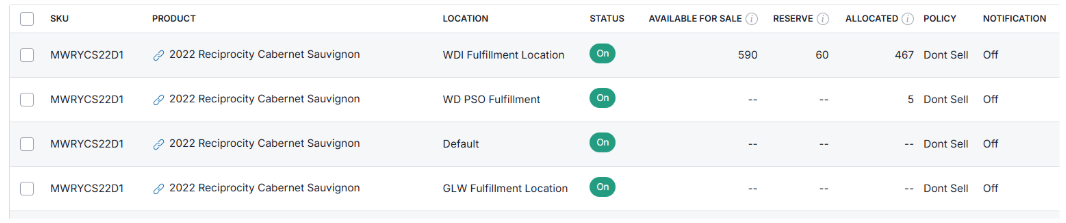
 C7 Available to Sell is 590 with 60 Reserved and 467 allocated out of the WDI Fulfillment Location
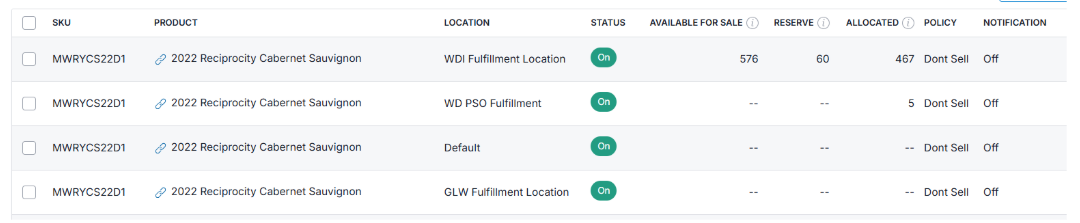
 After the inventory sync runs, the *Available to Sell* in C7 will be updated to 576. \
WDF Qty on Hand 1103 – (C7 Reserved 60 + C7 Allocated 467) = 576
After the inventory sync runs, the *Available to Sell* in C7 will be updated to 576. \
WDF Qty on Hand 1103 – (C7 Reserved 60 + C7 Allocated 467) = 576
 If you have questions about the results of the inventory sync, be sure to check:
1. The location where your inventory in C7 is syncing to.
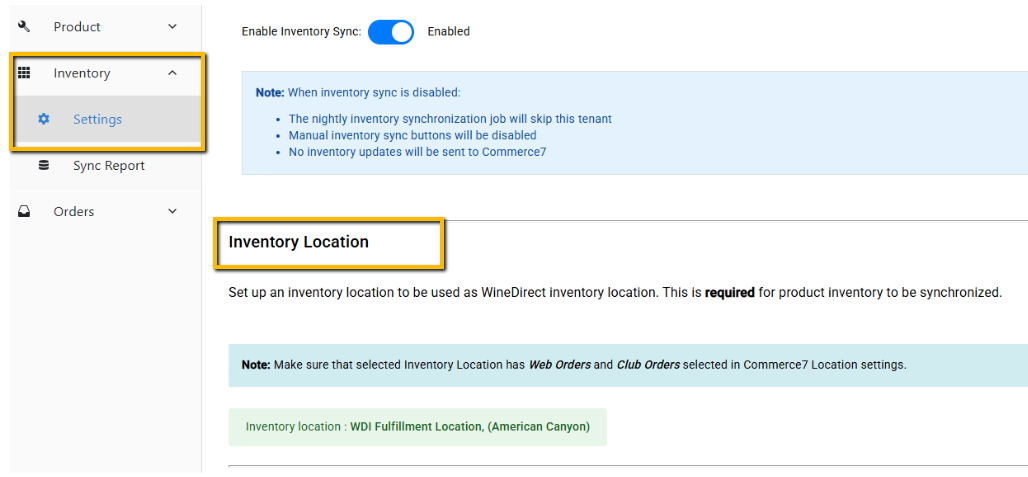
1. The location is configured under **Inventory Settings >Inventory Location**
(This location must also be assigned Web Orders and Club Orders)
If you have questions about the results of the inventory sync, be sure to check:
1. The location where your inventory in C7 is syncing to.
1. The location is configured under **Inventory Settings >Inventory Location**
(This location must also be assigned Web Orders and Club Orders)
 2. No Inventory Exclusions are selected under Warehouses or Sub-Inventories.
1. This is configured under \*\*WineDirect Fulfillment Settings >Inventory Settings >Inventory Exclusions. \*\*
2. No Inventory Exclusions are selected under Warehouses or Sub-Inventories.
1. This is configured under \*\*WineDirect Fulfillment Settings >Inventory Settings >Inventory Exclusions. \*\*
 ## Product Sync
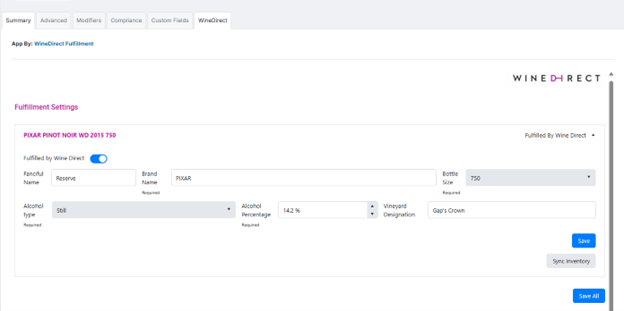
1. Product Sync: Quickly sync C7 product SKUs into WineDirect Fulfillment. Add required Fulfillment attributes against the product (APV, Vintage, etc.).
## Product Sync
1. Product Sync: Quickly sync C7 product SKUs into WineDirect Fulfillment. Add required Fulfillment attributes against the product (APV, Vintage, etc.).
 2. Starting from the **WineDirect Setting** tab
a. Click **Product > Sync Products**
2. Starting from the **WineDirect Setting** tab
a. Click **Product > Sync Products**
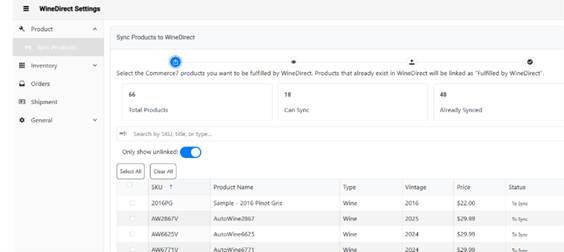 3. From this screen, the user can search for a specific SKU to sync from the Search Field
1. Individually select one or more specific SKUs to sync
2. Click **"Select All"** to check off all SKUs for Sync
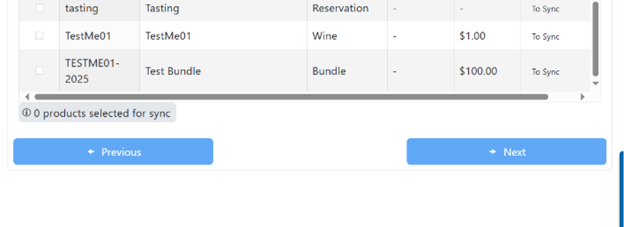
3. Once confirmed click **"Next"** and then **"Start Sync"**
3. From this screen, the user can search for a specific SKU to sync from the Search Field
1. Individually select one or more specific SKUs to sync
2. Click **"Select All"** to check off all SKUs for Sync
3. Once confirmed click **"Next"** and then **"Start Sync"**
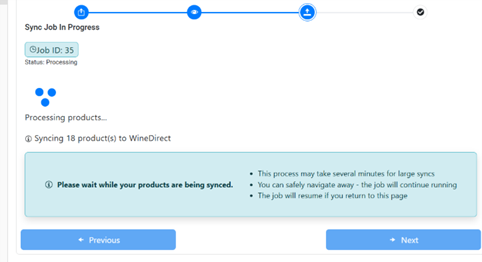
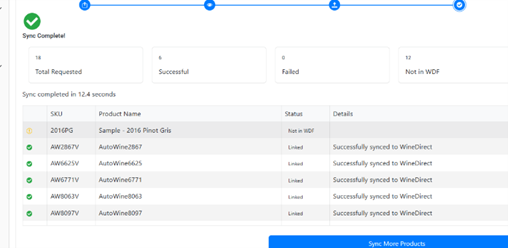
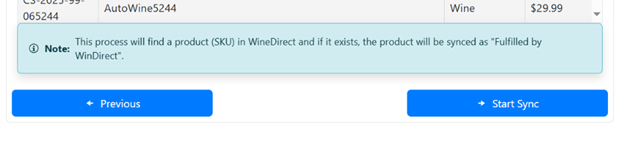 4. The sync process will run and after completion, the results will display.
 ## Email Notifications
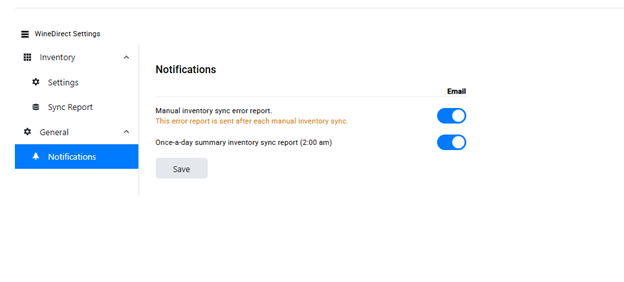
2. Email Notifications: You can enable/disable emailed reports, which will summarize inventory adjustments:\
a. Manual Inventory sync report: when manual inventory syncs are triggered –
b. Daily Snapshot: when inventory is synced nightly at 2:00am.
## Email Notifications
2. Email Notifications: You can enable/disable emailed reports, which will summarize inventory adjustments:\
a. Manual Inventory sync report: when manual inventory syncs are triggered –
b. Daily Snapshot: when inventory is synced nightly at 2:00am.