> ## Documentation Index
> Fetch the complete documentation index at: https://docs.winedirectfulfillment.com/llms.txt
> Use this file to discover all available pages before exploring further.
# WineDirect Fulfillment Integration: ShipCompliant
> ShipCompliant has long been a valued partner of WineDirect Fulfillment, providing order submission and tracking data flows. Simplify your shipping order’s lifecycle by integrating your eCommerce, compliance and fulfillment partner.
### **Features:**
* Order Submission
* Tracking Data Flow
**New Clients:** If you are a new client, the Onboarding team and your Account Manager will provide you with your Third Party Credentials to complete your ShipCompliant and WineDirect Fulfillment Integration.
**Existing Clients:** If you are an existing client and just getting started with ShipCompliant, let your Account Manager know and we’ll generate the necessary Third Party Credentials.
### **How to Setup the Integration**
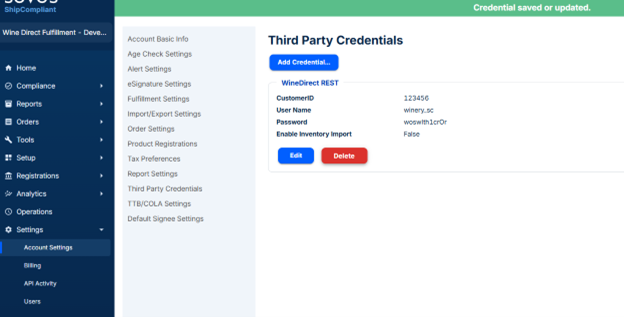
1. Once your AM/ESM have shared your credentials, you’ll go to your ShipCompliant Portal, Settings > Account Settings > Third Party Credentials:
 2. Complete the pop up with the following fields:
* Credential Type dropdown: “WineDirect REST”
* CustomerID: provided by WineDirect Fulfillment
* Username: provided by WineDirect Fulfillment (usually your wineryname\_sc)
* Password: provided by WineDirect Fulfillment (12 characters, no punctuation)
* Enable Inventory Import: Leave unchecked
* Fulfillment Account: Leave blank unless you are a ShipCompliant Enterprise account.
* Click ‘Save >>”
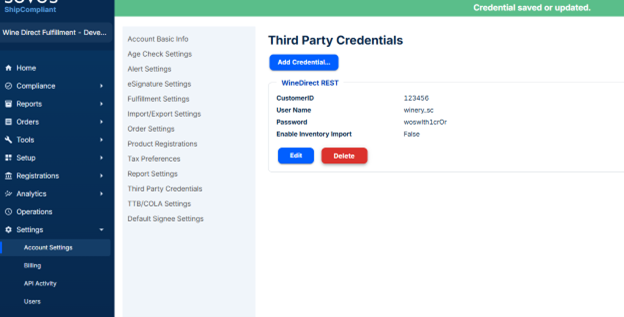
3. Once saved, you’ll see the credentials listed in your Account Settings:
2. Complete the pop up with the following fields:
* Credential Type dropdown: “WineDirect REST”
* CustomerID: provided by WineDirect Fulfillment
* Username: provided by WineDirect Fulfillment (usually your wineryname\_sc)
* Password: provided by WineDirect Fulfillment (12 characters, no punctuation)
* Enable Inventory Import: Leave unchecked
* Fulfillment Account: Leave blank unless you are a ShipCompliant Enterprise account.
* Click ‘Save >>”
3. Once saved, you’ll see the credentials listed in your Account Settings:
 4. Email [shipcompliantsupport@sovos.com](mailto:shipcompliantsupport@sovos.com), include your account name and request that ‘Auto’ mode be turned on for WineDirect Fulfillment.
5. Once confirmed, it is time to test! Coordinate a shipping test order with your Account Manager.
### **Additional Resources**
[Fulfillment Partner – ShipCompliant Documentation](https://docs.sovos.com/en/indirect-tax/indirect-tax-products/regulated-shipping/shipcompliant/orders/integrate-with-a-fulfillment-partner)
[Release Club Orders to Fulfillment](https://docs.sovos.com/en/indirect-tax/indirect-tax-products/regulated-shipping/shipcompliant/orders/release-club-orders-to-fulfillment)
[Create a web service user (ShipCompliant web service user to integrate with eCommerce platform.)](https://docs.sovos.com/en/indirect-tax/indirect-tax-products/regulated-shipping/shipcompliant/integrations/create-a-web-service-user)
[Web Service & Order Issues](https://docs.winedirectfulfillment.com/documentation/orders/winedirect-web-service-&-order-issues)
4. Email [shipcompliantsupport@sovos.com](mailto:shipcompliantsupport@sovos.com), include your account name and request that ‘Auto’ mode be turned on for WineDirect Fulfillment.
5. Once confirmed, it is time to test! Coordinate a shipping test order with your Account Manager.
### **Additional Resources**
[Fulfillment Partner – ShipCompliant Documentation](https://docs.sovos.com/en/indirect-tax/indirect-tax-products/regulated-shipping/shipcompliant/orders/integrate-with-a-fulfillment-partner)
[Release Club Orders to Fulfillment](https://docs.sovos.com/en/indirect-tax/indirect-tax-products/regulated-shipping/shipcompliant/orders/release-club-orders-to-fulfillment)
[Create a web service user (ShipCompliant web service user to integrate with eCommerce platform.)](https://docs.sovos.com/en/indirect-tax/indirect-tax-products/regulated-shipping/shipcompliant/integrations/create-a-web-service-user)
[Web Service & Order Issues](https://docs.winedirectfulfillment.com/documentation/orders/winedirect-web-service-&-order-issues)