> ## Documentation Index
> Fetch the complete documentation index at: https://docs.winedirectfulfillment.com/llms.txt
> Use this file to discover all available pages before exploring further.
# Add a product
> Learn how to add new products to existing orders
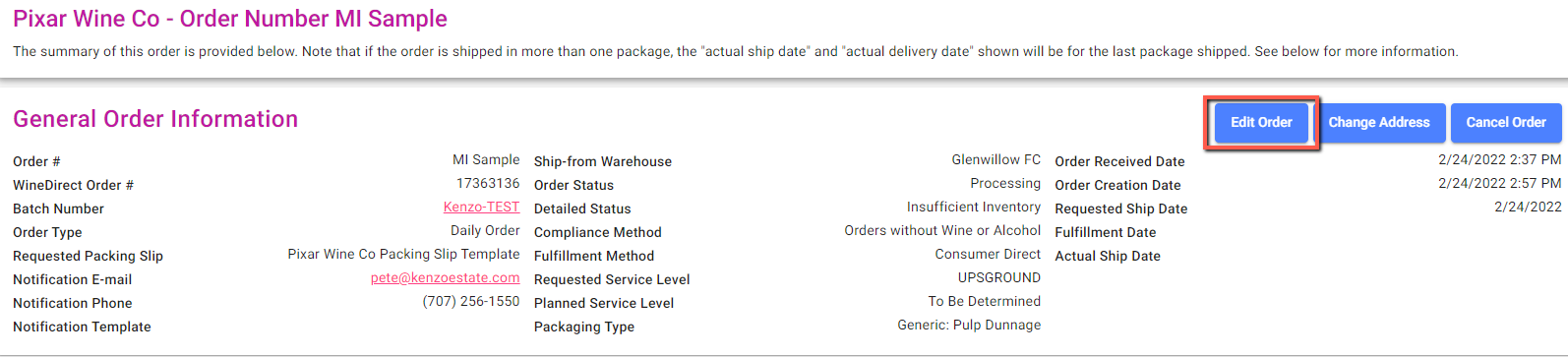
Click on **Edit Order**:
 Click **Add**:
 Select a new SKU to add from the dropdown, including the price and quantity:
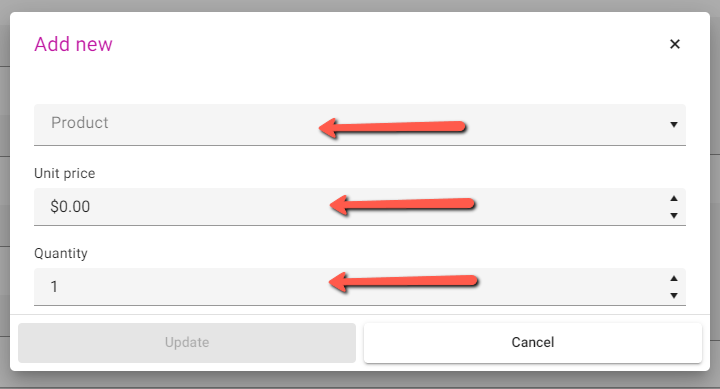 Click **Update**, and when all of the desired SKUs have been added, click **Save**.
## Important Notes
* You can add multiple products before saving the order
* Make sure to set the correct price and quantity for each added product
* Added products will be included in the order's shipping calculations
* Verify inventory availability before adding products
## Related Topics
* [Edit an Order Overview](/s/orders/edit-an-order/overview)
* [Change or add a price to a SKU](/s/orders/edit-an-order/change-or-add-a-price-to-a-sku)
* [Changing a quantity of a product](/s/orders/edit-an-order/changing-a-quantity-of-a-product)
Click **Update**, and when all of the desired SKUs have been added, click **Save**.
## Important Notes
* You can add multiple products before saving the order
* Make sure to set the correct price and quantity for each added product
* Added products will be included in the order's shipping calculations
* Verify inventory availability before adding products
## Related Topics
* [Edit an Order Overview](/s/orders/edit-an-order/overview)
* [Change or add a price to a SKU](/s/orders/edit-an-order/change-or-add-a-price-to-a-sku)
* [Changing a quantity of a product](/s/orders/edit-an-order/changing-a-quantity-of-a-product)