> ## Documentation Index
> Fetch the complete documentation index at: https://docs.winedirectfulfillment.com/llms.txt
> Use this file to discover all available pages before exploring further.
# Change or add a gift message
> How to add or edit gift messages for orders in the fulfillment system
## How to Add or Edit a Gift Message
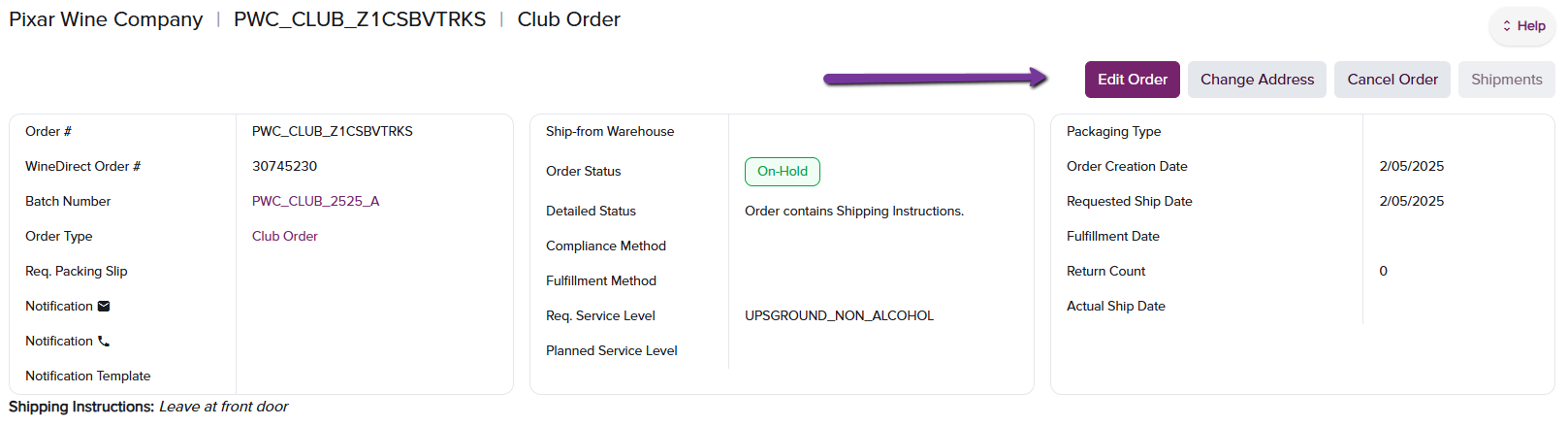
### Step 1: Access Edit Order
Click on **Edit Order**
 ### Step 2: Enter Gift Message
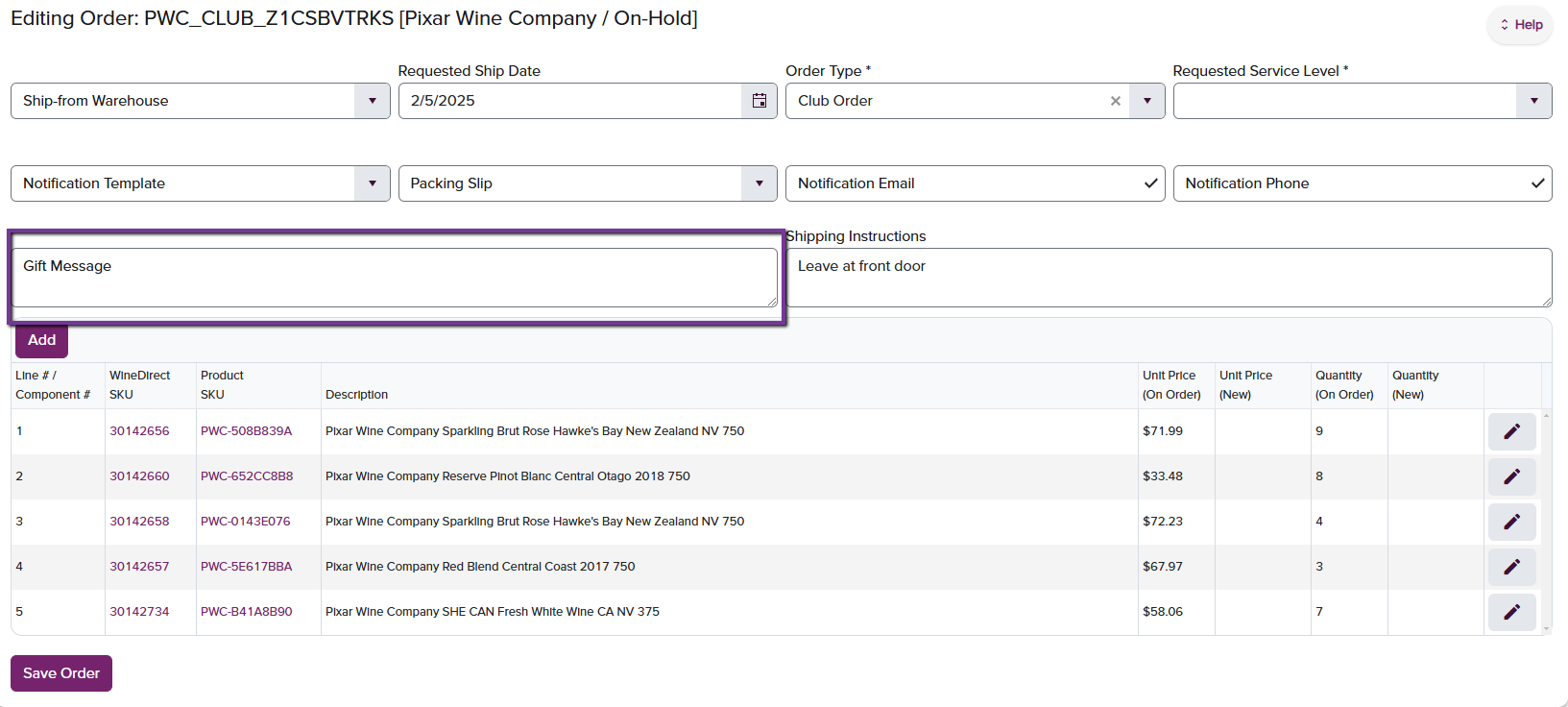
Add or change a Gift Message by entering the message in the **Gift Message** field.
### Step 2: Enter Gift Message
Add or change a Gift Message by entering the message in the **Gift Message** field.
 ### Step 3: Save Changes
When finished with edit, click on **Save Order**
***
Gift messages can be added or modified for orders that haven't been shipped yet. Make sure to save your changes to ensure the gift message is included with the order.
### Step 3: Save Changes
When finished with edit, click on **Save Order**
***
Gift messages can be added or modified for orders that haven't been shipped yet. Make sure to save your changes to ensure the gift message is included with the order.