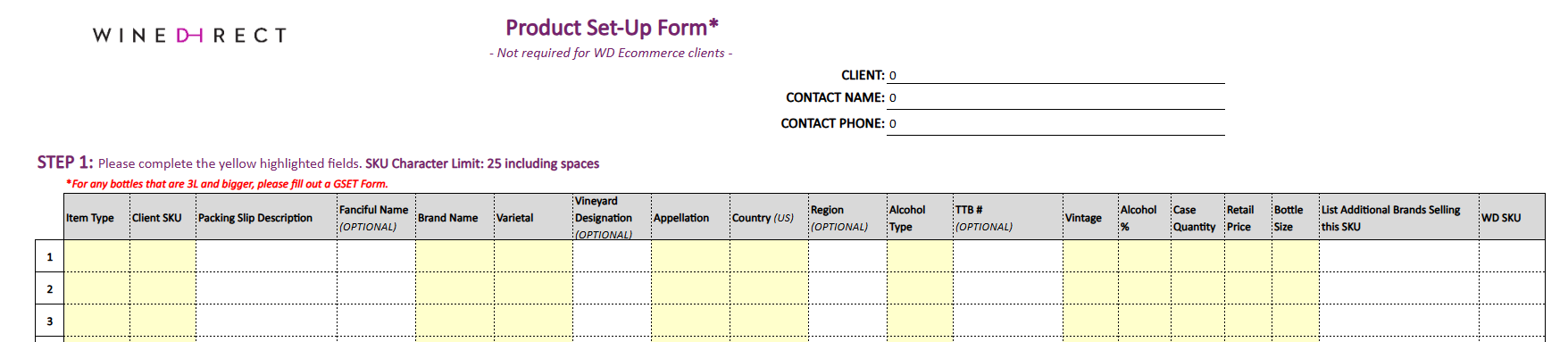
> ## Documentation Index
> Fetch the complete documentation index at: https://docs.winedirectfulfillment.com/llms.txt
> Use this file to discover all available pages before exploring further.
# Create/Edit Products
> Step-by-step instructions for creating new and editing existing product SKUs directly from the fulfillment portal
WineDirect Fulfillment is proud to expand the features offered within the Fulfillment platform, which continues to supply our clients with real-time order and data management.
Among these newest feature launches is the ability for clients to Create and Edit new and existing product SKUs directly from the fulfillment portal!
This article will take the user through step-by-step instructions on the following actions:
* **Create a single New Product**
* **Edit a single Existing Product**
* **Create New Products in Bulk**
* **Edit Existing Products in Bulk**
## Create a Single New Product
To begin, the user will need to fill out the requested fields from the dropdown menus:
### Required Fields:
**Supplied By:**\* The Supplier that will be supplying the product (ex: the parent brand if applicable)
**Sellable By:**\* The Customer(s) that will be selling the product. If a stand-alone account, these fields will list the same client name
**Item Type:** Choose from the dropdown of item types:
* Accessory
* Food
* Gift Set
* Insert/Collateral
* Packaging
* Pick-To-Order
* Wine/Sparkling
**Click Go**
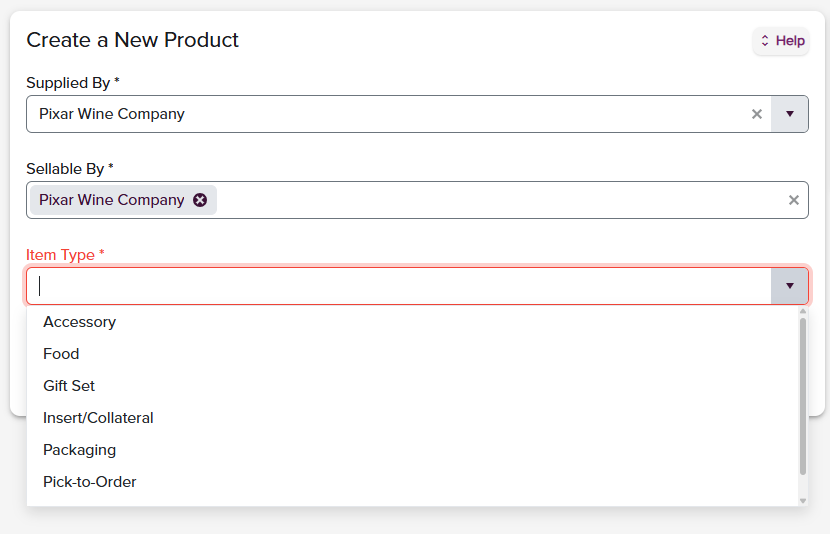 The next page will populate with fields applicable to the selected Item Type configuration. Red-highlighted fields are mandatory for the item to be correctly saved. After all information has been inserted, the user must click **Save** to create the SKU successfully.
> Orders containing only non-wine product types (Accessory, Food, Insert/Collateral) will automatically trigger our non‑wine flag, so these orders ship without an adult signature requirement, ensuring a smoother and more successful delivery experience. Ask your Account Manager to help open up your non-wine shipping channels.
## Edit an Existing Product
To begin, the user will need to fill out the requested fields from the dropdown menus:
### Required Fields:
**Supplied By:** The Supplier that will be supplying the product (ex: the parent brand if applicable)
**Product SKU:** Begin to type the SKU or click the dropdown option to search through the listing of active SKUs and select the SKU to edit
**Click Go**
The next page will populate with fields applicable to the selected Item Type configuration. Red-highlighted fields are mandatory for the item to be correctly saved. After all information has been inserted, the user must click **Save** to create the SKU successfully.
> Orders containing only non-wine product types (Accessory, Food, Insert/Collateral) will automatically trigger our non‑wine flag, so these orders ship without an adult signature requirement, ensuring a smoother and more successful delivery experience. Ask your Account Manager to help open up your non-wine shipping channels.
## Edit an Existing Product
To begin, the user will need to fill out the requested fields from the dropdown menus:
### Required Fields:
**Supplied By:** The Supplier that will be supplying the product (ex: the parent brand if applicable)
**Product SKU:** Begin to type the SKU or click the dropdown option to search through the listing of active SKUs and select the SKU to edit
**Click Go**
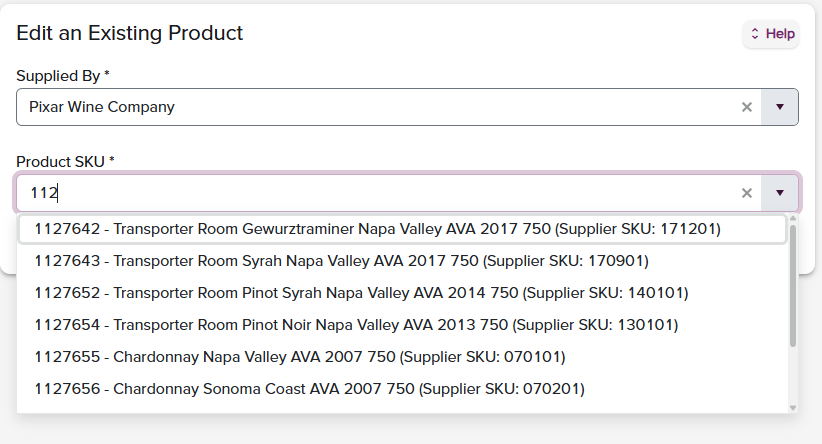 The next page will populate with fields applicable to modifying the selected Item Type configuration. After all information has been edited, the user must click **Save** to create the SKU successfully.
## To Create/Edit Bulk SKUs:
Our Account Coordinator team is on hand to assist you with the bulk creation or editing of large amounts of SKUs. To begin the process, please select the product setup form below that matches the type of SKUs you want to create in bulk. Complete all areas of the form and submit to [csoperations@winedirectfulfillment.com](mailto:csoperations@winedirectfulfillment.com), and we will take care of the rest!
* [Wine SKU Setup Form](https://winedirectfulfillment.com/wp-content/uploads/2026/01/WD_WINE_Setup-Form_V2-4.xlsx)
* [Non-Wine SKU Setup Form](https://winedirectfulfillment.com/wp-content/uploads/2026/01/WD_Accessory-Food-Greeting-Card-Insert-Packaging_Setup-Form_V2-3.xlsx)
* [GSET/PTO Setup Form](https://winedirectfulfillment.com/wp-content/uploads/2026/01/WD_GSET-or-PTO_Setup-Form_V2-5.xlsx)
The next page will populate with fields applicable to modifying the selected Item Type configuration. After all information has been edited, the user must click **Save** to create the SKU successfully.
## To Create/Edit Bulk SKUs:
Our Account Coordinator team is on hand to assist you with the bulk creation or editing of large amounts of SKUs. To begin the process, please select the product setup form below that matches the type of SKUs you want to create in bulk. Complete all areas of the form and submit to [csoperations@winedirectfulfillment.com](mailto:csoperations@winedirectfulfillment.com), and we will take care of the rest!
* [Wine SKU Setup Form](https://winedirectfulfillment.com/wp-content/uploads/2026/01/WD_WINE_Setup-Form_V2-4.xlsx)
* [Non-Wine SKU Setup Form](https://winedirectfulfillment.com/wp-content/uploads/2026/01/WD_Accessory-Food-Greeting-Card-Insert-Packaging_Setup-Form_V2-3.xlsx)
* [GSET/PTO Setup Form](https://winedirectfulfillment.com/wp-content/uploads/2026/01/WD_GSET-or-PTO_Setup-Form_V2-5.xlsx)