

What this integration enables:
- Orders automatically flow from Shopify to Winehub and into WineDirect Fulfillment
- Inventory levels stay synced between WineDirect Fulfillment and Winehub
- Tracking information flows back into Shopify once orders ship
- Customers automatically receive shipping notifications
Before You Start
Contact your WineDirect Account Manager to obtain your WineDirect API access credentials, which include your account number, supplier name, and ID.Connecting WineDirect Fulfillment to Winehub
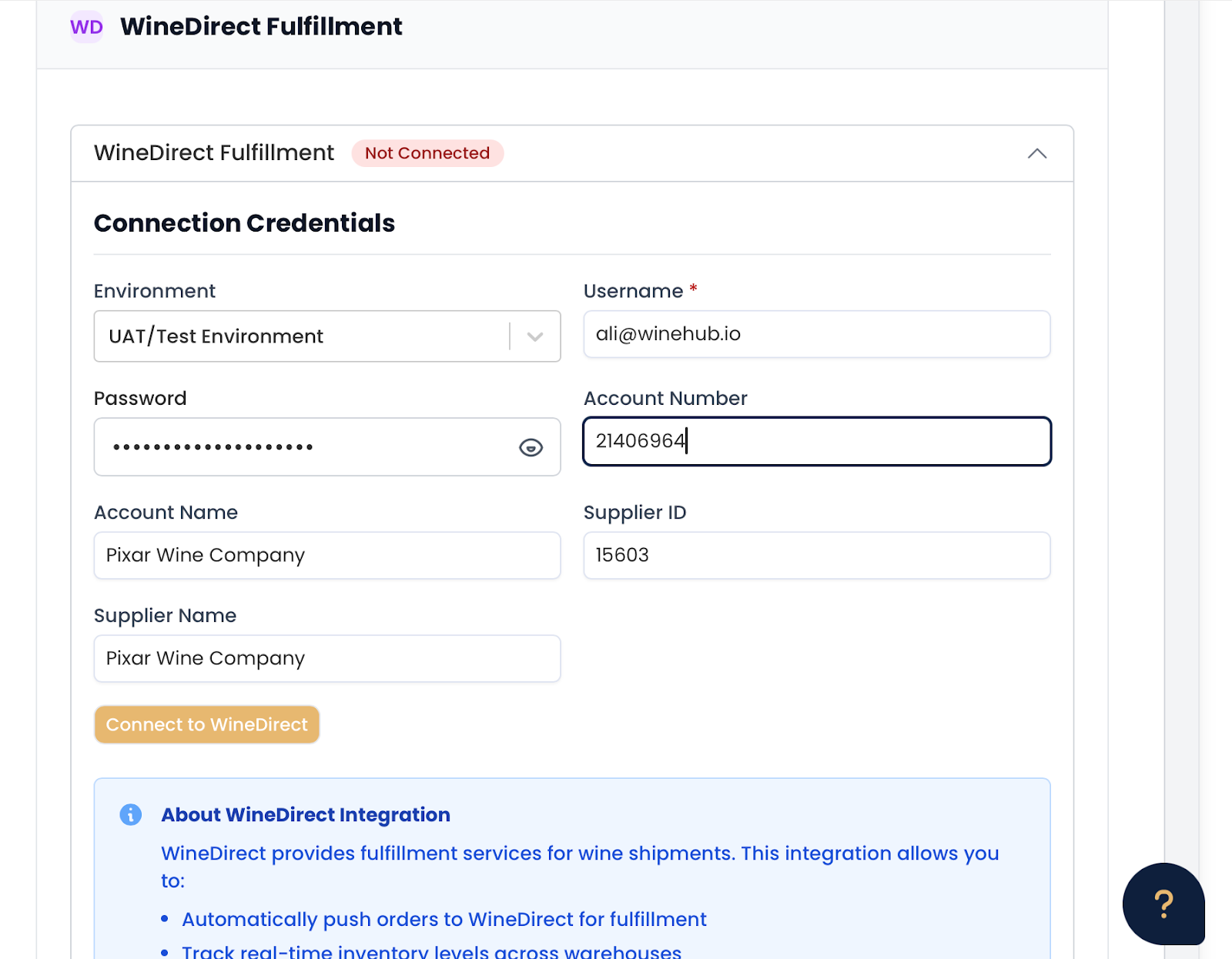
Step 1: From your Winehub admin, click Settings in the left-hand menu Step 2: Open the WineDirect integration located in the Third-Party integrations section Step 3: Enter your credentials by completing the following fields:- Username: Your WineDirect Fulfillment portal login
- Password: Your WineDirect Fulfillment password
- Account Name: Your registered business name
- Supplier Name: Your supplier name in WineDirect Fulfillment
- Supplier ID: Your WineDirect Fulfillment supplier ID
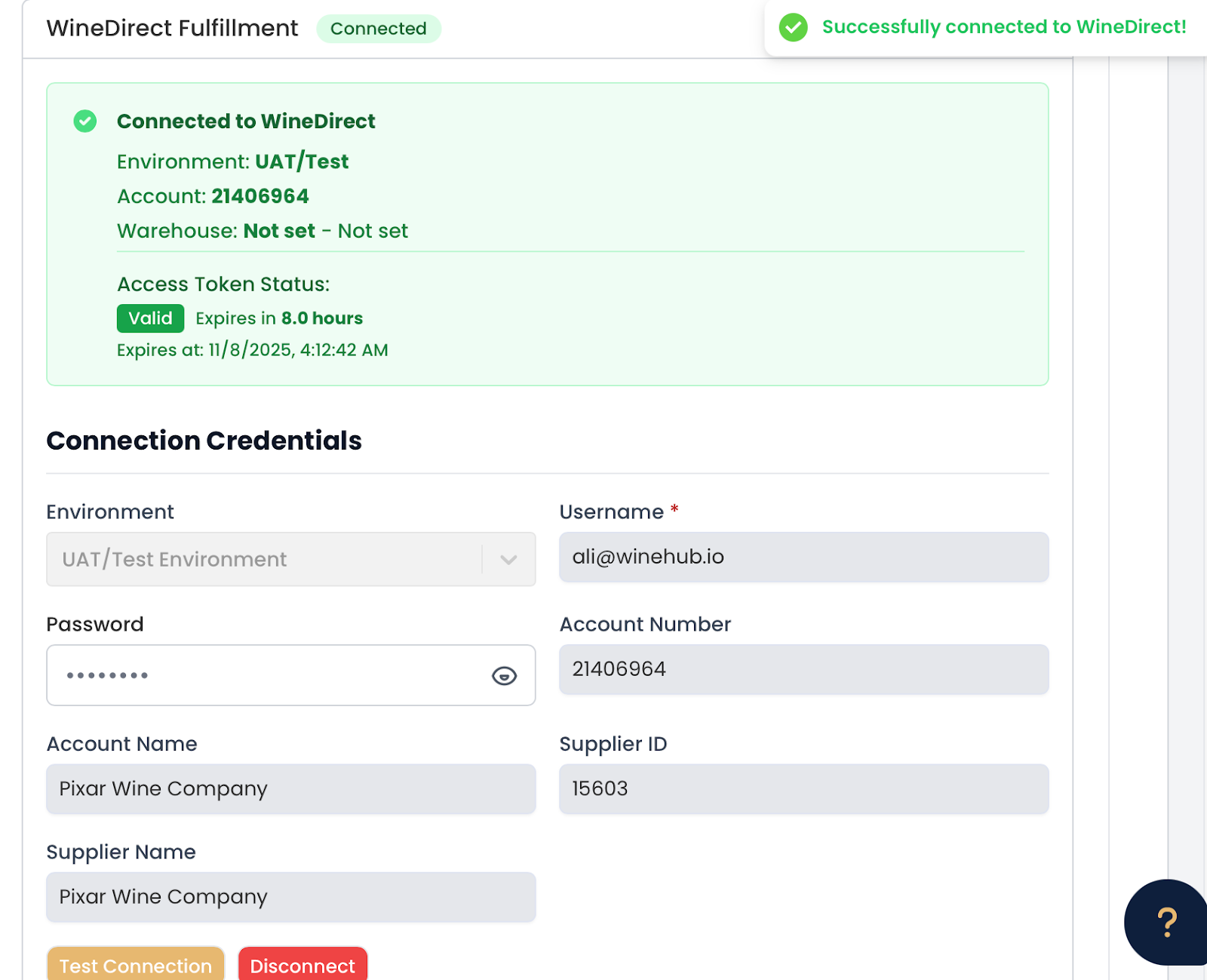
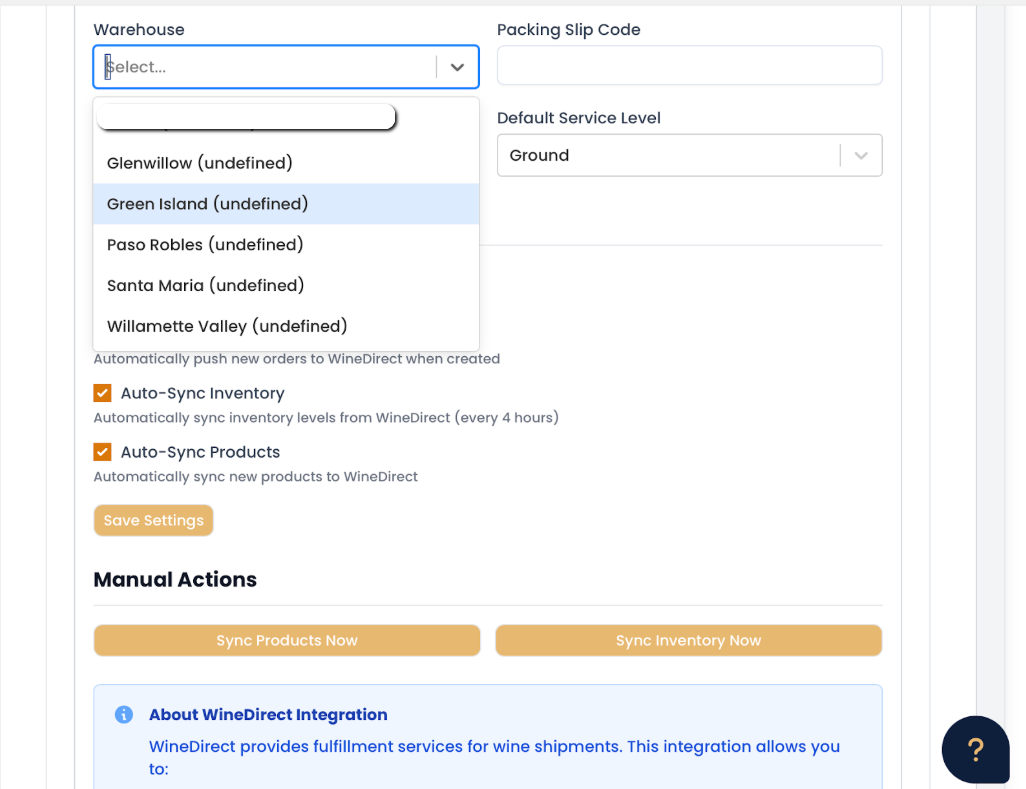
- Default warehouse (for example: Glenwillow OH, Green Island CA, Paso Robles CA, Santa Maria CA or Willamette Valley OR
- Default shipping method (usually Ground)
- Packing slip template
Understanding the WineDirect Dashboard within WineHub
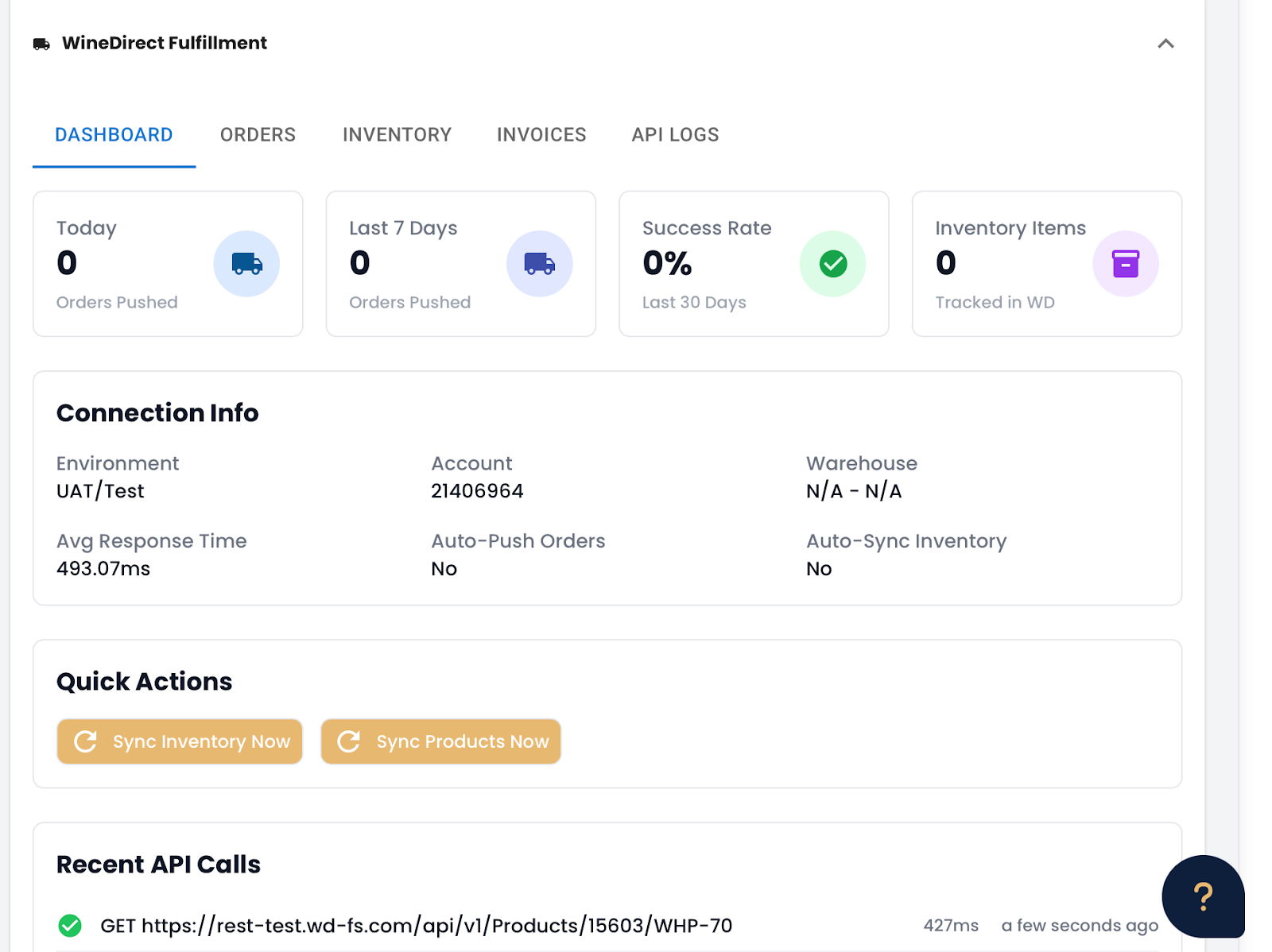
The dashboard can be found by navigating to: WineHub > Administration > WineDirect DashboardConnection Status:
- Green “Connected” - everything is working properly
- Red “Disconnected” - check your credentials
- Yellow “Token Issue” - the system will auto-fix this; try again in a few minutes
Statistics
- Orders Pushed Today - how many orders were sent to WineDirect Fulfillment today
- Orders This Week - weekly order count
- Orders This Month - Monthly order count
- Success Rate: Percentage of orders that were successfully sent
- Inventory Items - number of products being tracked
Recent Activity
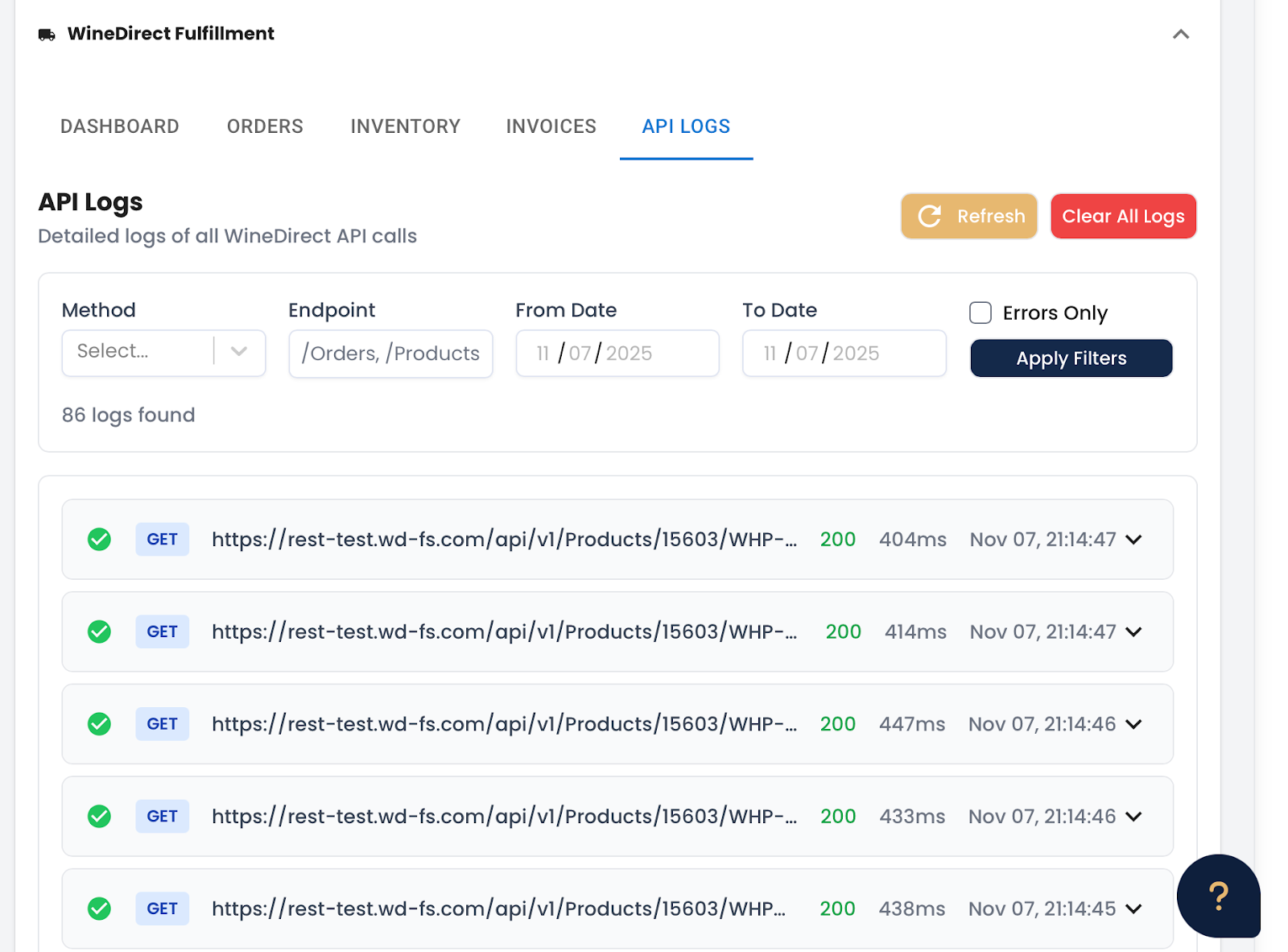
- Shows the last several API calls from WineHub, including any errors
- This helps you see what’s happening with your integration in real-time
How Orders Flow
When orders are placed in Shopify, the order is created in Shopify and recorded in Winehub, then automatically sent to WineDirect. WineDirect processes the order at the warehouse, items are picked, packed, and shipped, tracking details sync back to Shopify, and the customer receives delivery updates. No manual intervention is required unless an error occurs.Viewing Orders
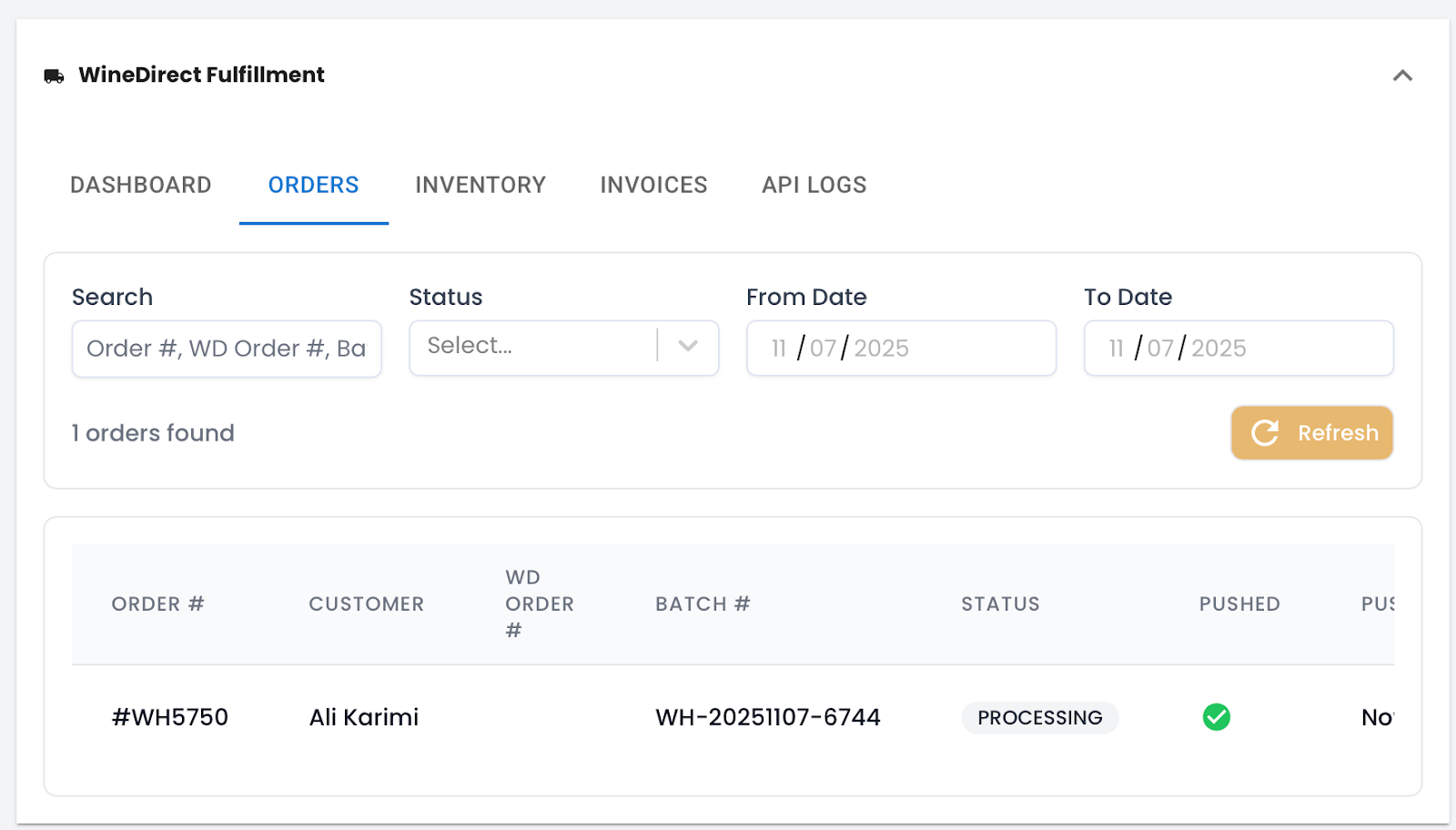
To view orders, open the WineDirect Dashboard in Winehub (Winehub > Administration) and select the Orders tab. Each order displays the Shopify order number, WineDirect order reference, status, customer name, push date, and any error messages.Wine club and subscription orders are automatically flagged as CLUB orders in WineDirect to support special handling or billing rules.

WineDirect Order Fulfillment Panel
Visible on individual Shopify orders, this panel shows fulfillment status and WineDirect state, the WineDirect order number and batch, sync timestamps, shipment details including carrier, tracking, and delivery dates, and warehouse inventory availability per item. Available actions include syncing status, cancelling the order before shipment, and viewing the order in WineDirect Fulfillment.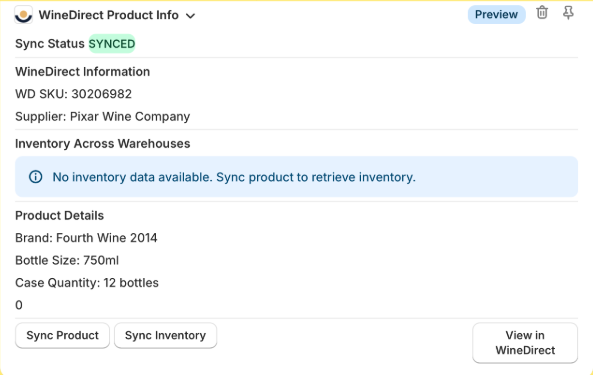
WineDirect Product Info Panel
Visible on Shopify product pages, this panel shows sync status, WineDirect SKU and supplier details, inventory by warehouse (available, on hand, committed), and product attributes sent to WineDirect. Available actions include syncing the product, syncing inventory, and viewing the product in WineDirect.Product and Inventory Syncing
Products must exist in your WineDirect Fulfillment system, and inventory levels must be kept in sync before orders can be fulfilled. Winehub manages both product creation and ongoing inventory updates through the WineDirect Fulfillment integration.How product syncing works:
- WineDirect can only fulfill products that exist in their system. Syncing products creates or updates those products in WineDirect using data from Shopify and Winehub.
- When a product is synced, Winehub sends the following information to WineDirect: SKU, brand, and product name, varietal and appellation, bottle size and case quantity, retail price, and alcohol percentage.
- To sync products, open the WineDirect dashboard and click Sync Products. Products must have a valid SKU, a name or brand, and required wine data to sync successfully. Shopify product tags indicate sync status, including winedirect-managed, winedirect-unsynced, and winedirect-sync-error.
How inventory sync works:
- Once products are synced, Winehub can pull live inventory levels from WineDirect so you always know what stock is available at the warehouse.
- You can sync inventory at any time by opening your WineDirect dashboard in Winehub and clicking Sync Inventory. Auto-sync can be enabled to refresh inventory periodically without manual intervention.
- Inventory is displayed by product and warehouse, including available stock, on-hand stock, and committed stock. Low-stock warnings help highlight products that may need replenishment before they become unavailable for sale.
Shipments and Tracking:
Once an order ships, tracking information automatically syncs to Shopify. Shipment statuses include shipped, in transit, out for delivery, delivered, exception, and returned. Customers receive Shopify shipping emails with tracking links automatically.Troubleshooting:
- Orders not syncing - Confirm the integration is connected, check API logs, verify credentials, and use Test Connection.
- **Token expired - **This usually resolves automatically. If it persists, run Test Connection.
- **Product sync errors - **Check the SKU, ensure required wine data is present, fix the product data, and re-sync.
- **Inventory not updating - **Run a manual inventory sync and confirm warehouse codes.
- Order shows error - Review the error message on the order and check API logs. Common causes include out-of-stock items or invalid shipping addresses.
- Fulfillment not created in Shopify - Use Sync Shipments to pull the latest shipment data.