This article details the objective of the Order Merge feature, which is the ability to merge two orders into a single order to assist with this common order request.
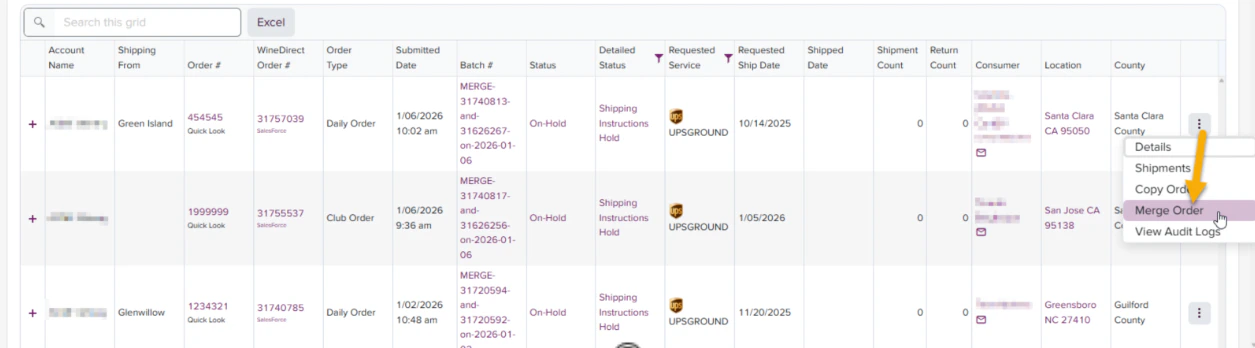
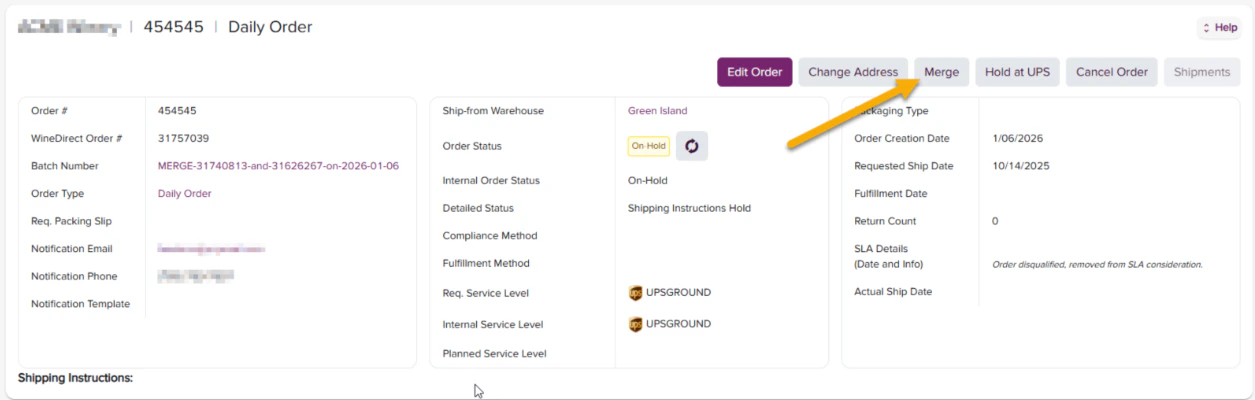
Select the Merge process from the View Orders page in the order action menu, or from the button on the Order Details page.
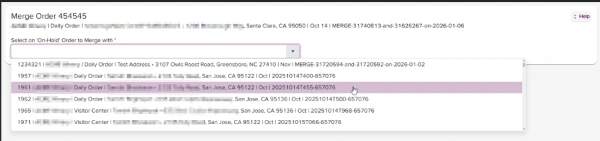
Choose the order to merge from the available ON HOLD orders
Orders available to be selected for this feature must reflect a status of ON HOLD
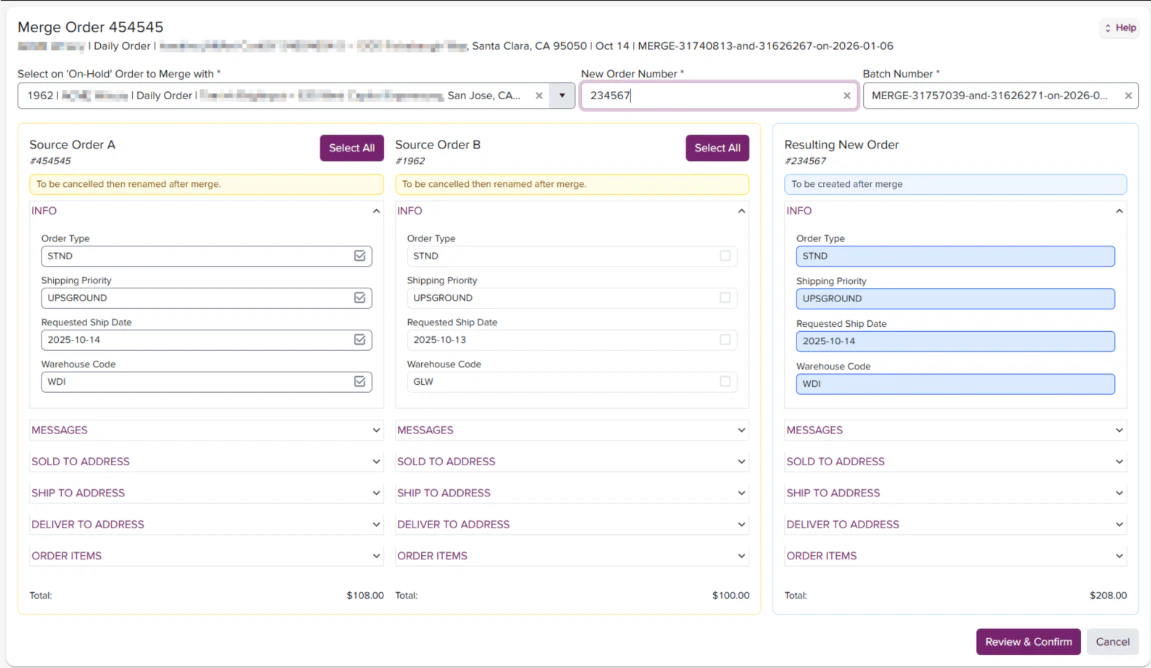
Add the Reference # and Batch # to be used for the new order record.
The previous step will load the page with three order columns related to the merge:
Source Order A: The initial order used to initiate the merge.
Source Order B: The order chosen to “merge with”.
Resulting New Order - The order that will remain after merging A and B. *At this step, you can rename the Resulting New Order to one of the original order numbers, A or B. This will allow for tracking to flow back upstream to ShipCompliant or your integrated ecommerce.
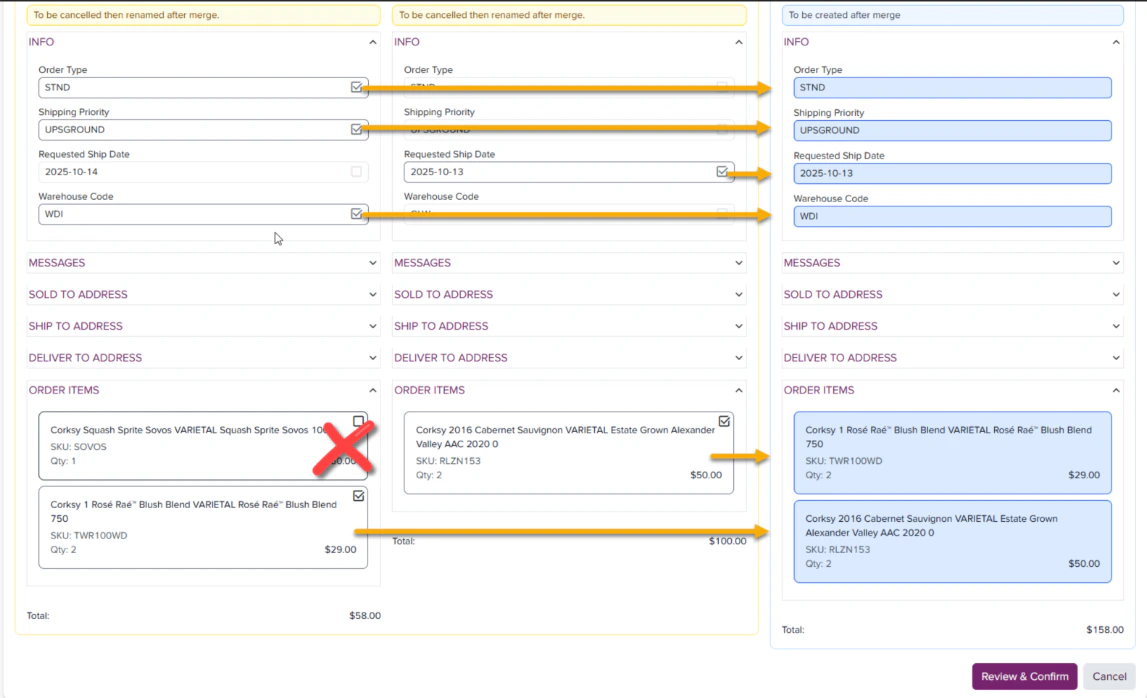
Select the values from order A or B that should be added to the new order.
By default, all order information from Order A and order items from Order B are selected.
Clicking the Select All button for either source order will choose all order information from that order.
Clicking the values directly will select them individually.
The order items can be deselected entirely from either source order if necessary to eliminate duplicates.
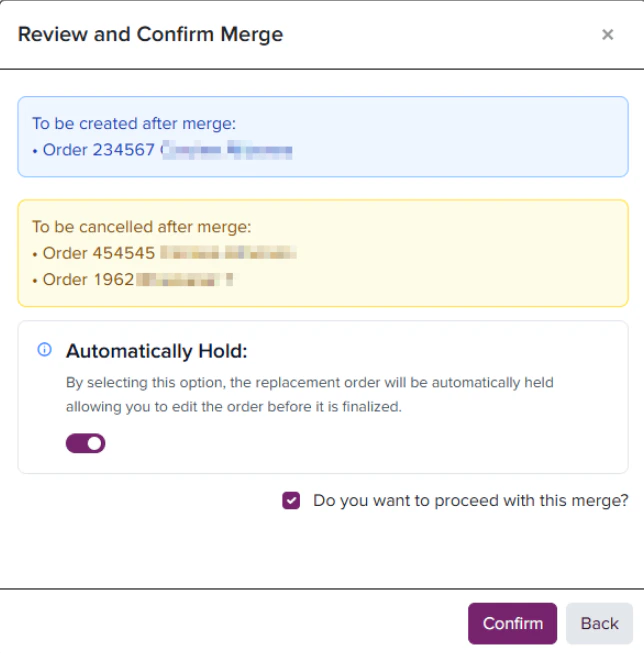
Click review and confirm to open a dialog window where the merge can be finalized.
The three involved orders (Source A, Source B, and New Order) will show for reference.
By default, the new order will go to a Shipping Instructions hold unless the Automatic Hold toggle is disabled.
Checking the box to “proceed with merge” will activate the Confirm button to submit the updates.
Once the merge process completes, it will redirect to the **Order Details **page for the new order.
There will be a Linked Orders section at the top of the page where the merged order relationships will be visible.
“Merged From” or “Merged To” will be included on all related orders for reference.
The source orders will be in a Cancelled status, with “-MERGED” appended to their original Order # for additional reference.
If one of the original order numbers is used for a Merged Order, the order status and tracking behavior of that merged order will flow back into the API of that original order, meaning no manual import of tracking statuses should have to be made by you and your team.The second “source” order number will not sync any tracking back into its original order status in ecommerce or ShipCompliant.The original order # is the “key” value for communication between the ecommerce and ShipCompliant platforms, so by naming the merged order the original, all tracking will be identified under the original order details. Example: Club order (CLUB) is uploaded and merged with a second order while keeping the original Club Order number the same, as shown in the video below:
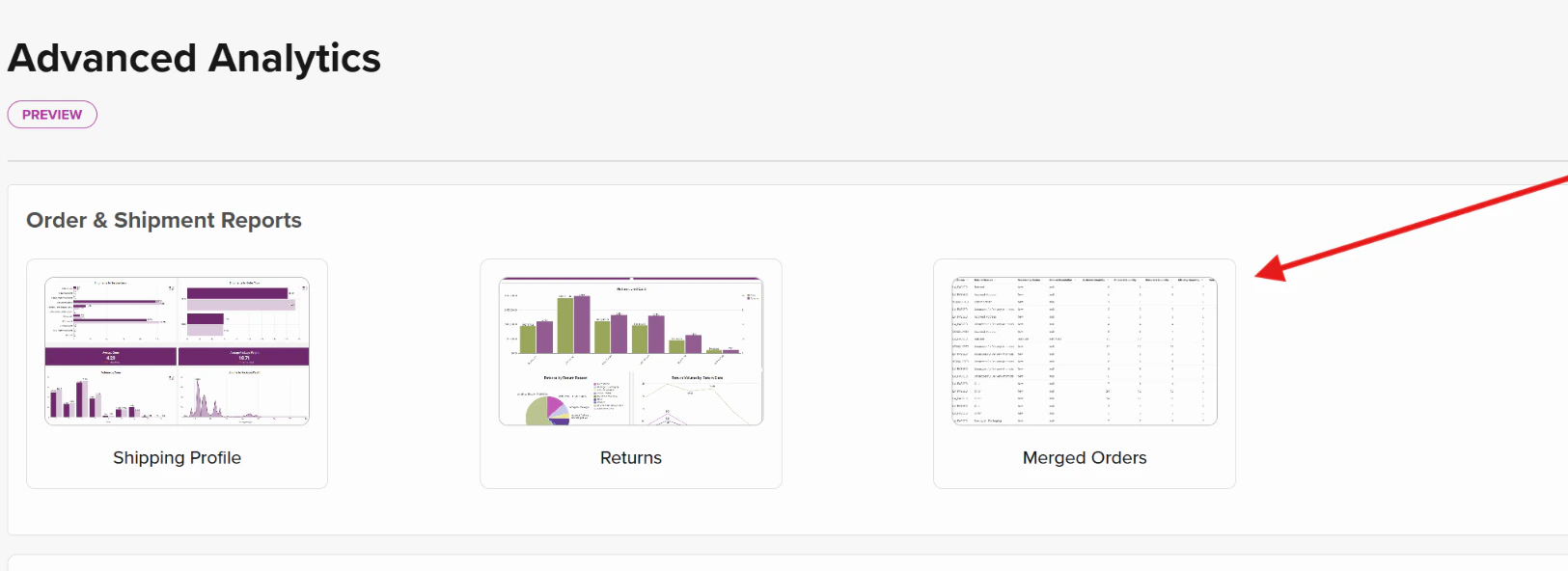
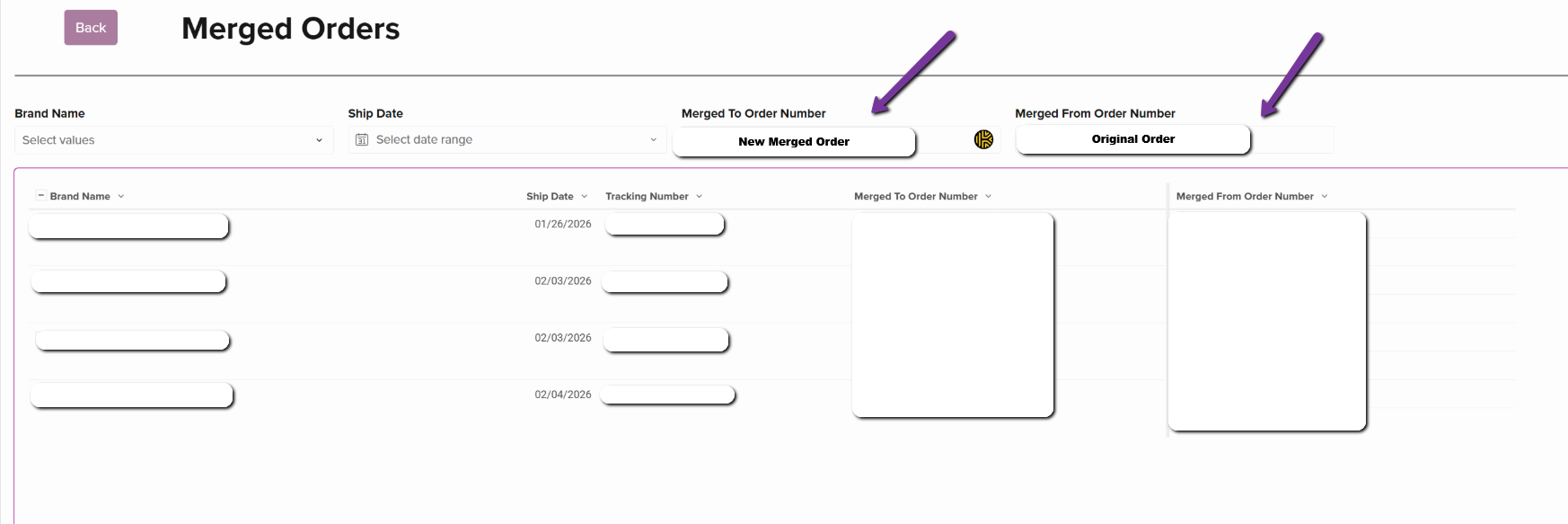
The Advanced Analytics chapter of your portal contains a Merged Order report available in the Order and Shipments Reports section.This report will contain all merged orders, specifically listing the original order number information that was merged from and the new order number information that was merged to.The information in this report can be exported to apply to ShipCompliant and point-of-sale platforms to link tracking and order submission.
Was this page helpful?
Assistant
Responses are generated using AI and may contain mistakes.



.png?fit=max&auto=format&n=xwCB8ADF2b79VTew&q=85&s=429239f6d73acc0ef447cb2d59076f20)