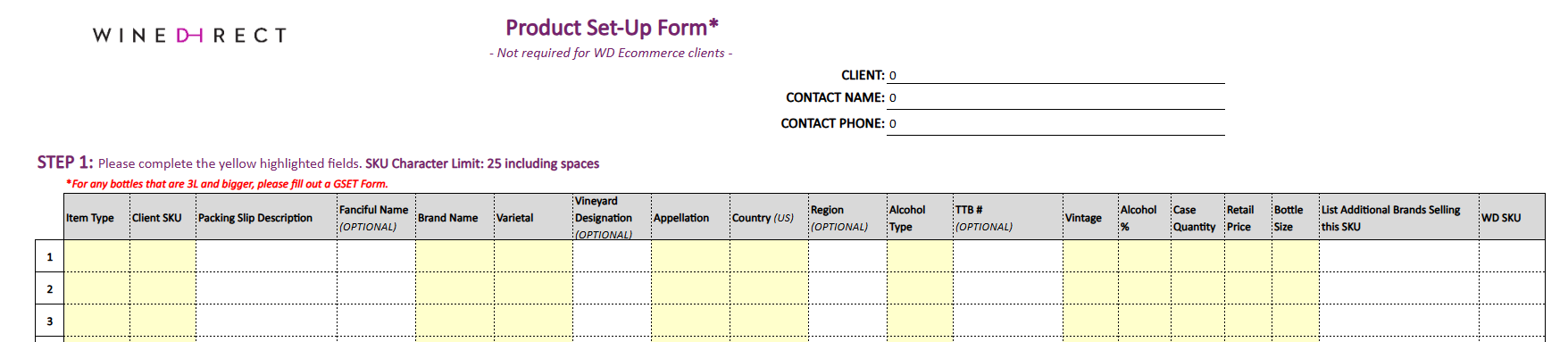
- Create a single New Product
- Edit a single Existing Product
- Create New Products in Bulk
- Edit Existing Products in Bulk
Create a Single New Product
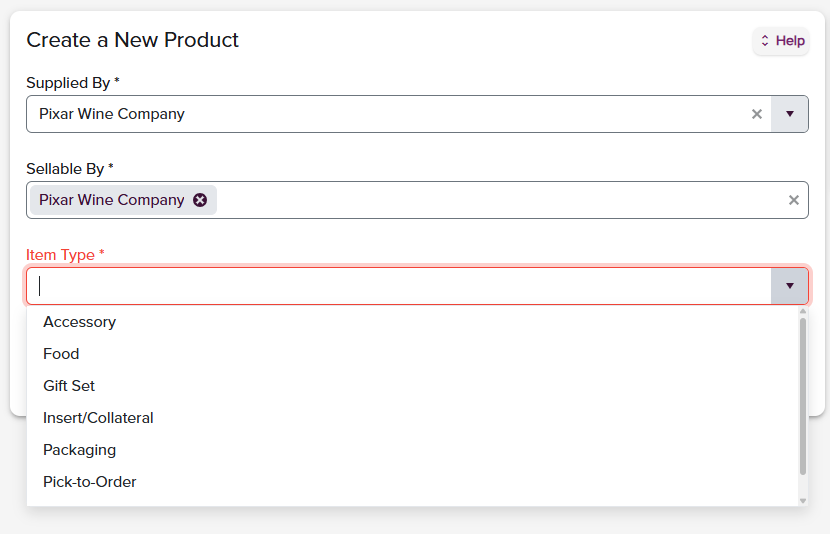
To begin, the user will need to fill out the requested fields from the dropdown menus:Required Fields:
Supplied By:* The Supplier that will be supplying the product (ex: the parent brand if applicable) Sellable By:* The Customer(s) that will be selling the product. If a stand-alone account, these fields will list the same client name Item Type: Choose from the dropdown of item types:- Accessory
- Food
- Gift Set
- Insert/Collateral
- Packaging
- Pick-To-Order
- Wine/Sparkling
Orders containing only non-wine product types (Accessory, Food, Insert/Collateral) will automatically trigger our non‑wine flag, so these orders ship without an adult signature requirement, ensuring a smoother and more successful delivery experience. Ask your Account Manager to help open up your non-wine shipping channels.
Edit an Existing Product
To begin, the user will need to fill out the requested fields from the dropdown menus:Required Fields:
Supplied By: The Supplier that will be supplying the product (ex: the parent brand if applicable) Product SKU: Begin to type the SKU or click the dropdown option to search through the listing of active SKUs and select the SKU to edit Click Go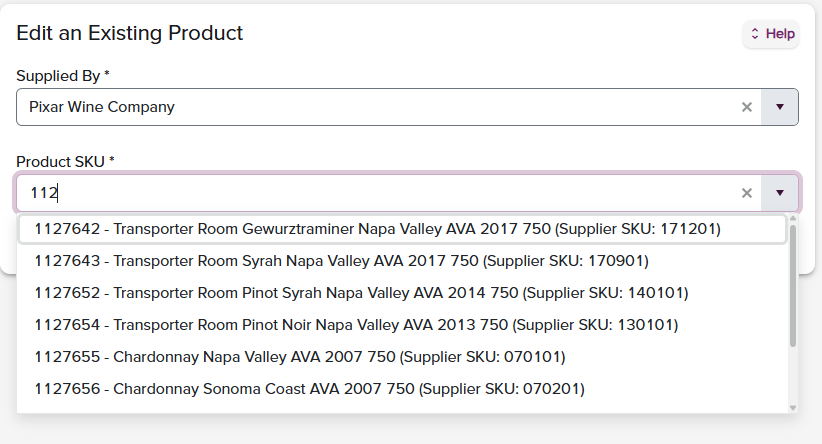
To Create/Edit Bulk SKUs:
Our Account Coordinator team is on hand to assist you with the bulk creation or editing of large amounts of SKUs. To begin the process, please select the product setup form below that matches the type of SKUs you want to create in bulk. Complete all areas of the form and submit to csoperations@winedirectfulfillment.com, and we will take care of the rest!