- Shipped
- First Scan
- Exception
- Out For Delivery
- Failed Attempt - First
- Failed Attempt - Second
- Available For Pickup
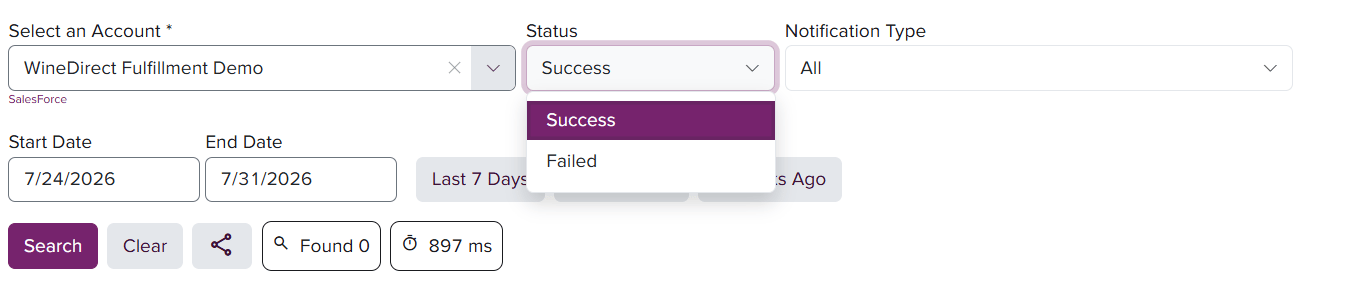
- Choose the account to display the emails sent to consumers
- Choose the Status of the types of email receipts you wish to populate:
- Success: emails that have been successfully sent to the email address on the order of the consumer
- Failed: emails that have failed to be sent to the email address on the order of the consumer
- Notification Type: choose one of the below or “All” to include all options in your search range
- Shipped: emails sent when the order is shipped from WineDirect Fulfillment
- First Scan: emails sent when the carrier first scans the tracking number
- Exception: emails sent when the carrier has triggered an exception with the package
- Out For Delivery (New!): emails sent when the package is out for delivery to the consumer
- Failed Attempt - First (New!): emails sent at the carriers first failed attempt tracking scan
- Failed Attempt - Second (New!): emails sent at the carriers second failed attempt tracking scan
- Available For Pickup (New!): emails are sent when the package is at a carrier-approved collection site (address to be provided within email)
- Choose the date range
- Click Search
- The current account
- WDF Order Number
- Client Order Number
- Order Type
- Carrier Name
- Tracking information
- Ship Date
- Recipient Customer
- Notification and Message Status