

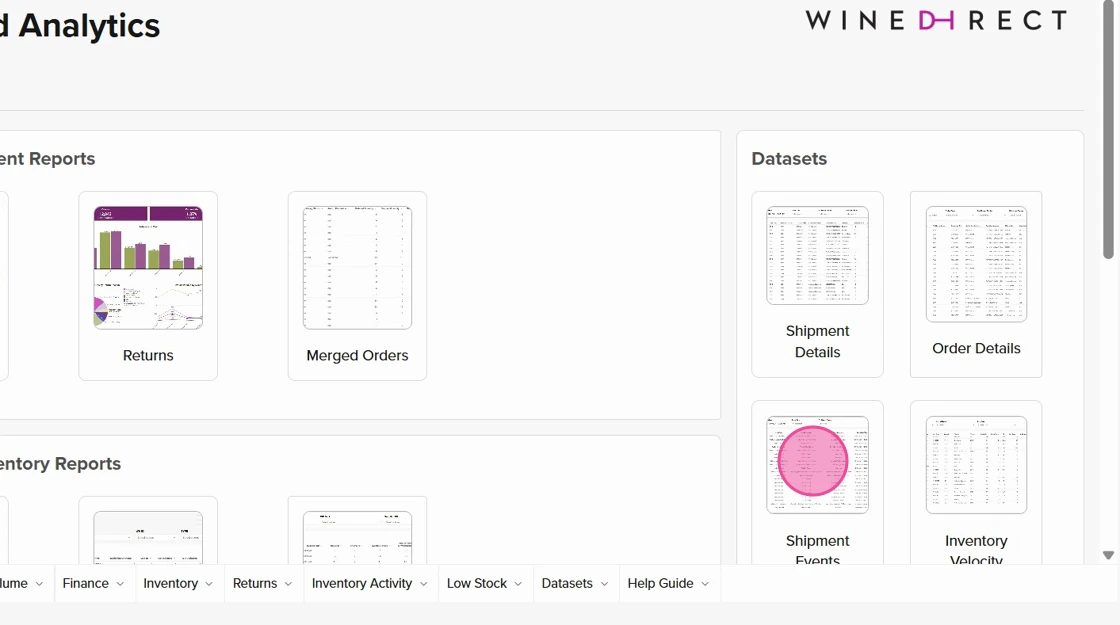
- Navigate to Advanced Analytics > Shipment Events, located on the right-hand panel within the dataset section:
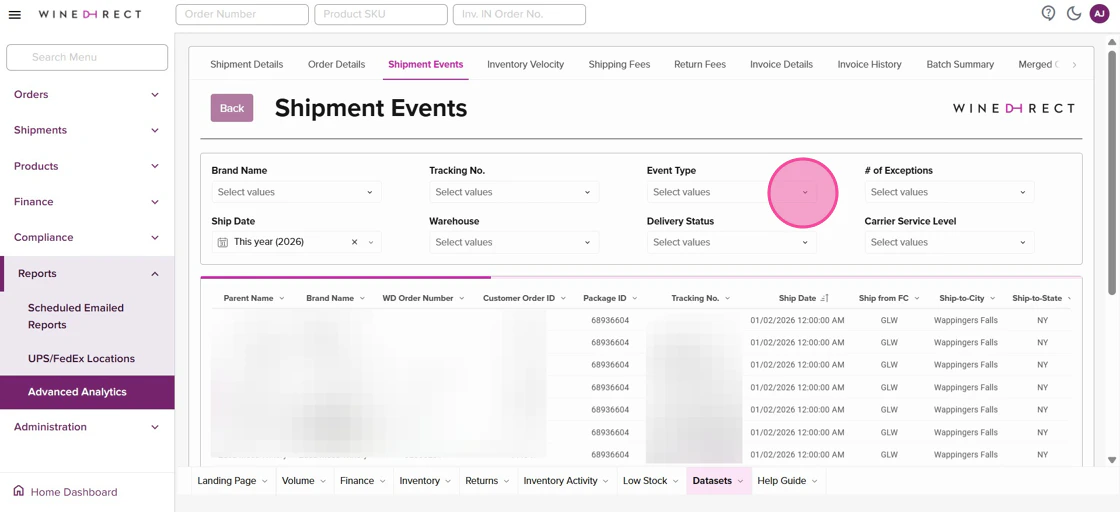
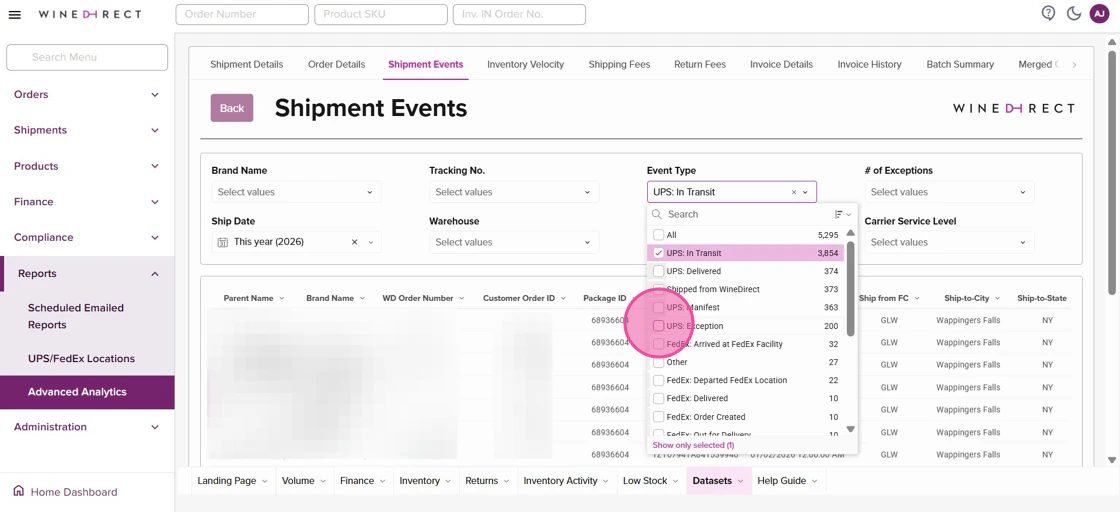
- To populate and view any shipment events, click Event Type in the search filter, along with any preferred date range or other attributes:
- To schedule a report for automation, click the three-dot icon in the upper-right corner of the report and click
Export>Schedule Reports: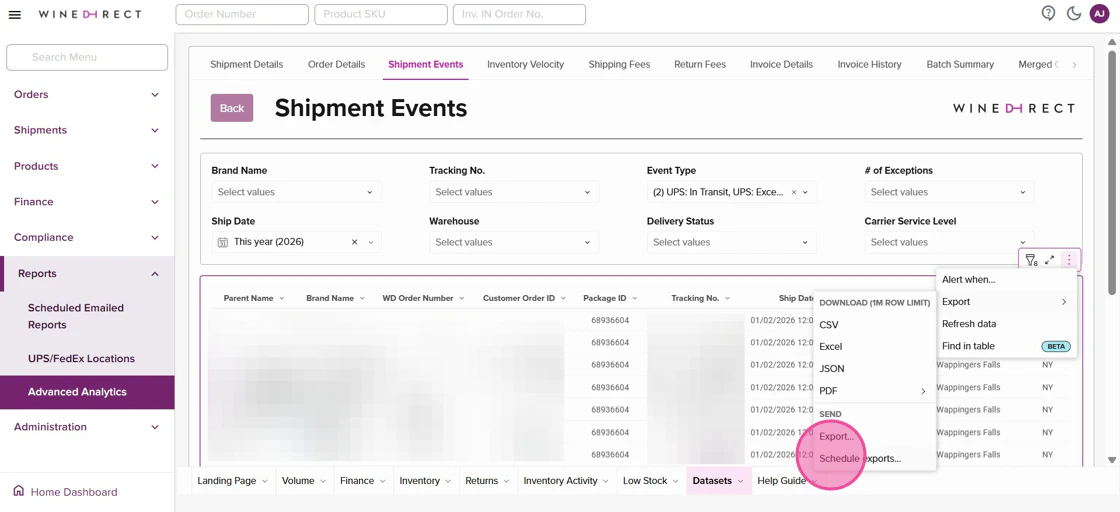
- Once the schedule report configuration box populates, you can scroll through and add your preferences to the email recipients of the report, the timing frequency of how often the report is sent, and if you scroll to the bottom, you will be able to customize the exact type of exceptions that will trigger a report to send:
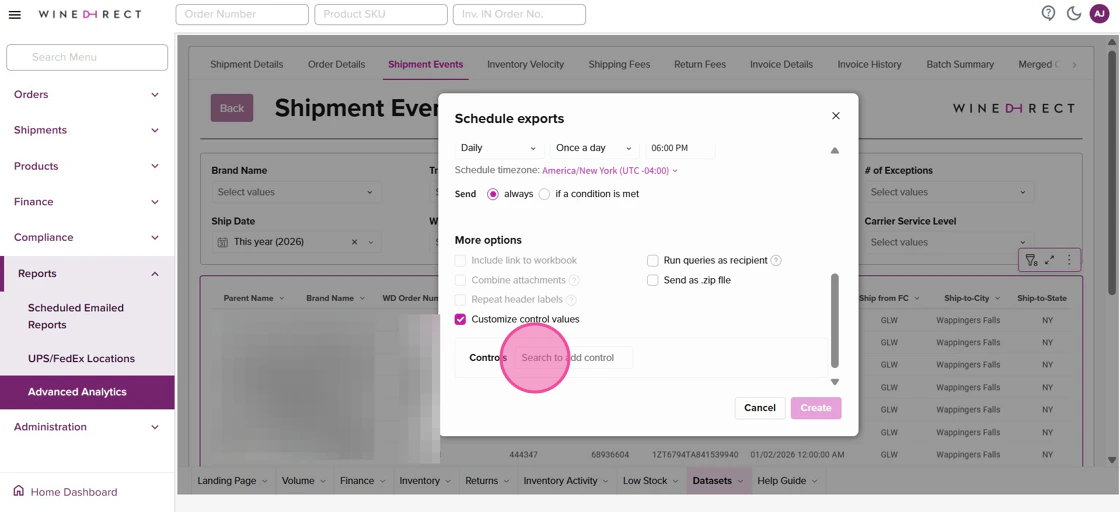
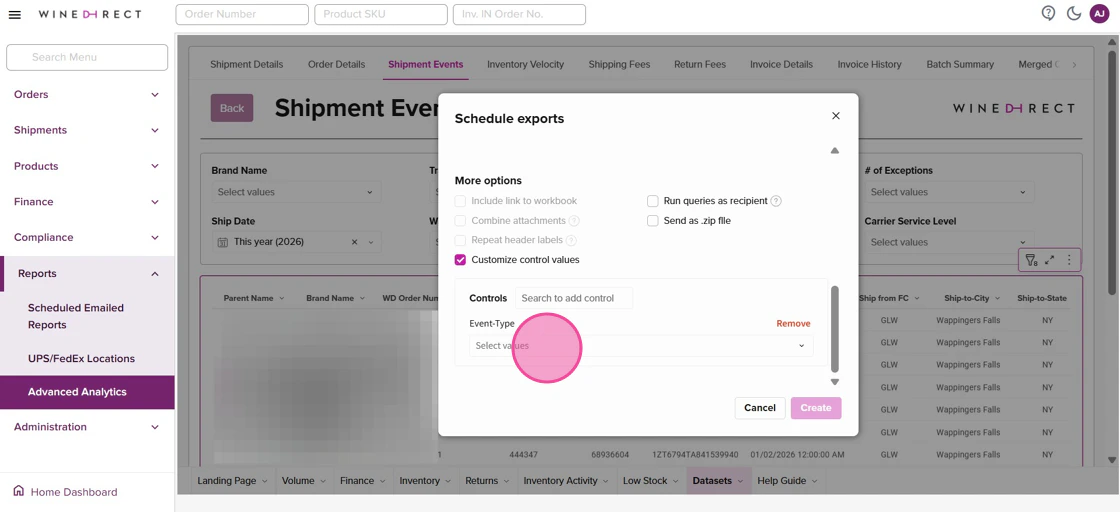
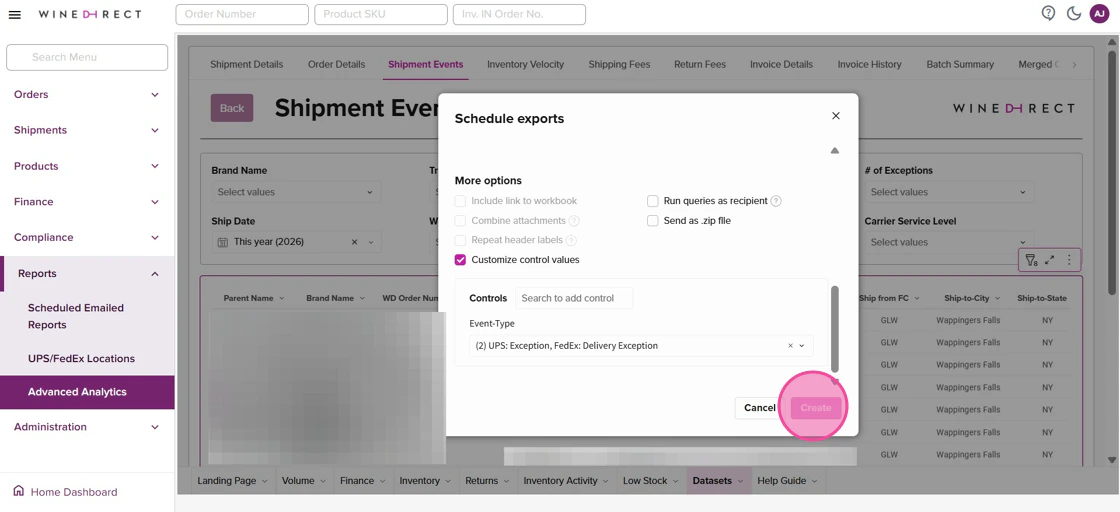
- Type “Event Type” in the control search bar and select all events you wish to get notified on, such as: In Transit or Exception
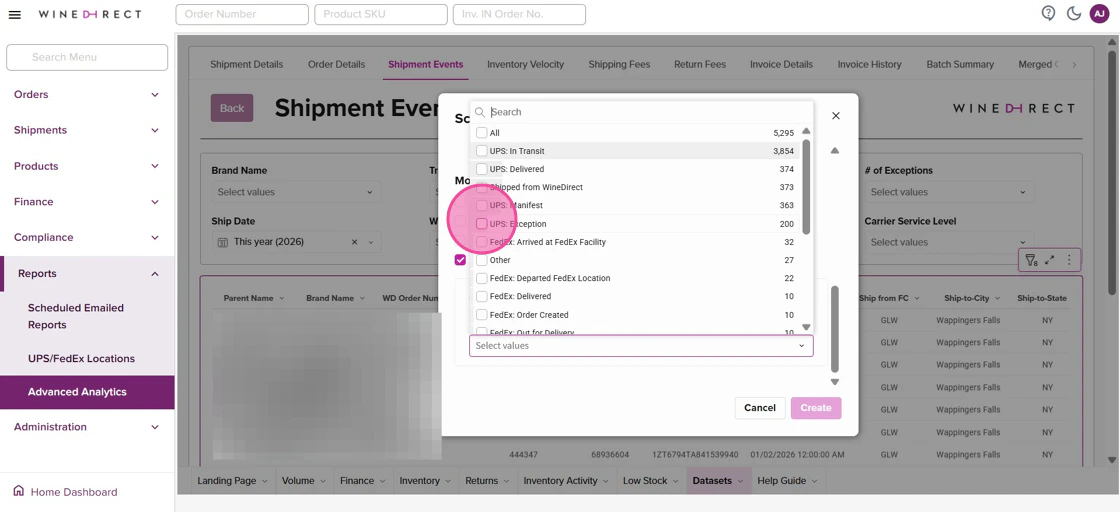
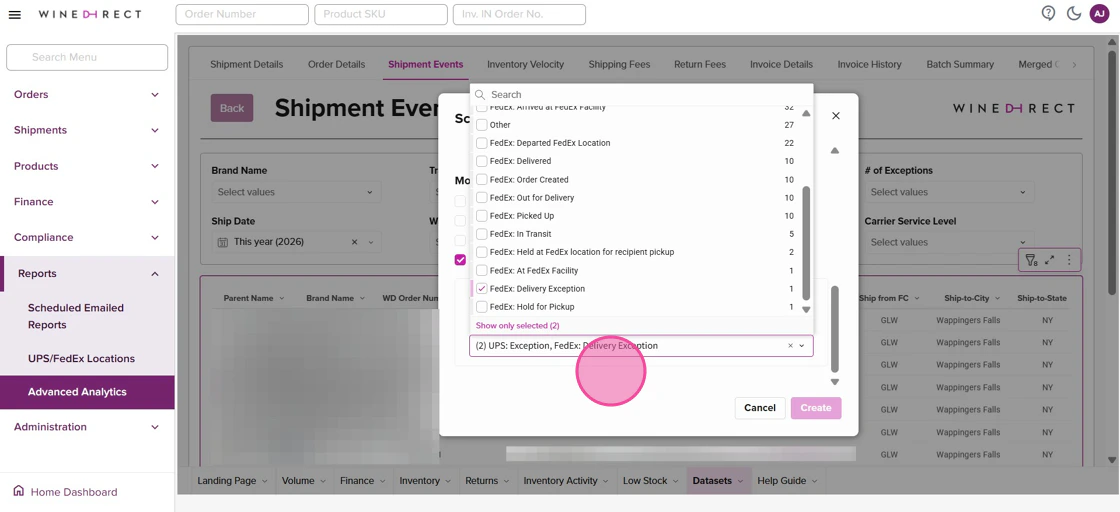
- Once all event types are selected, review all configurations, then click Create to save and set the scheduled automation:
\
Exceptions Report
Learn how to filter and schedule your WineDirect Shipment Events report for easier tracking. This guide walks you through the steps to isolate shipment exceptions and set up automated data exports that are sent directly to your email.
Was this page helpful?