Legacy Shipping Notifications and Advanced Shipping Notifications can operate alongside one another during the transition period. However, once an assignment is created in Advanced Shipping Notifications, all shipping notification emails for that client will be sent exclusively through Advanced Shipping Notifications.
Important: This change cannot be reversed. Before creating an assignment in Advanced Shipping Notifications, clients should fully migrate any existing templates, assignments, and notification settings from Legacy Shipping Notifications to ensure continuity in customer communications.As part of our enhanced Advanced Shipping Notification tools, the Assignments page is where you configure and manage your branded shipping notification templates by carrier, shipping event, and order type. This powerful assignment matrix gives your winery complete control over which email templates are sent for specific shipment scenarios, helping you deliver a more tailored and consistent customer experience across every order. Use the Assignments page to ensure the right message reaches the right customer at the right stage of the shipping journey. Follow the steps below to set up and manage your notification assignments.
- In the WineDirect Fulfillment portal, go to ‘Shipments’ > ‘Advanced Shipping Notifications’ > ‘Assignments’.
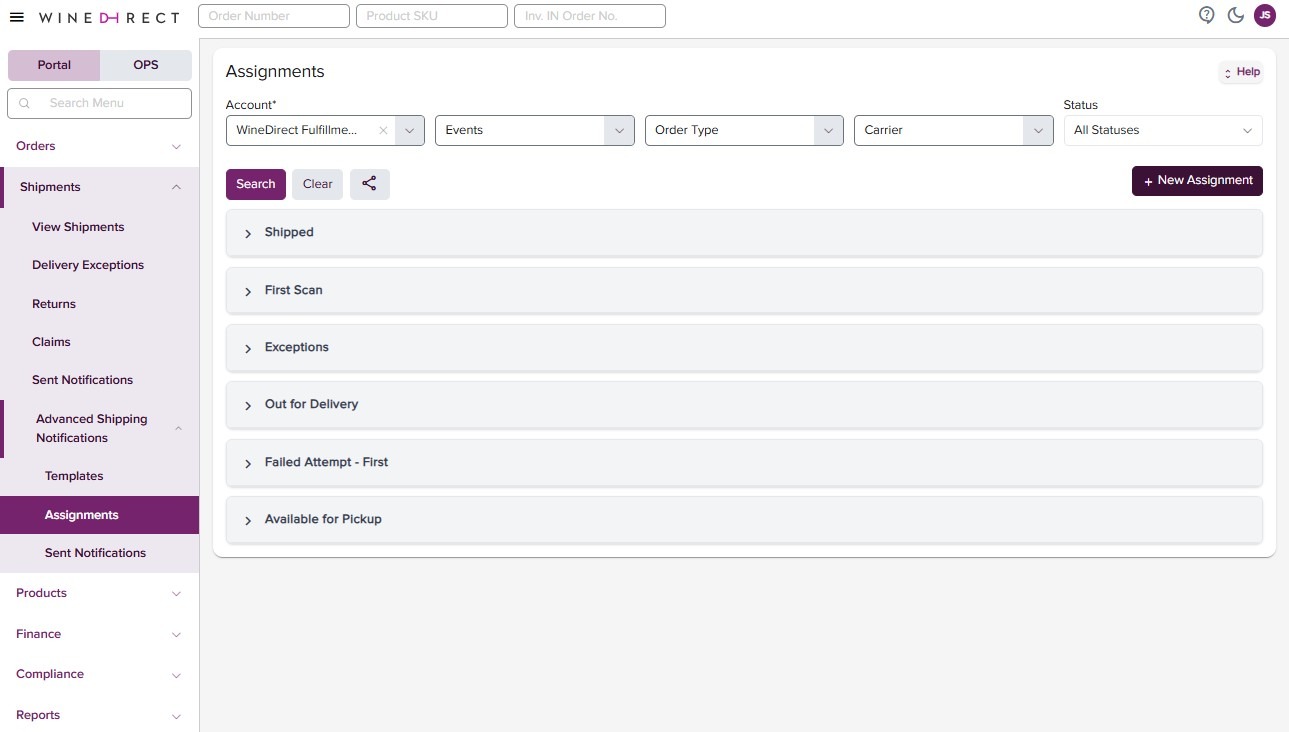
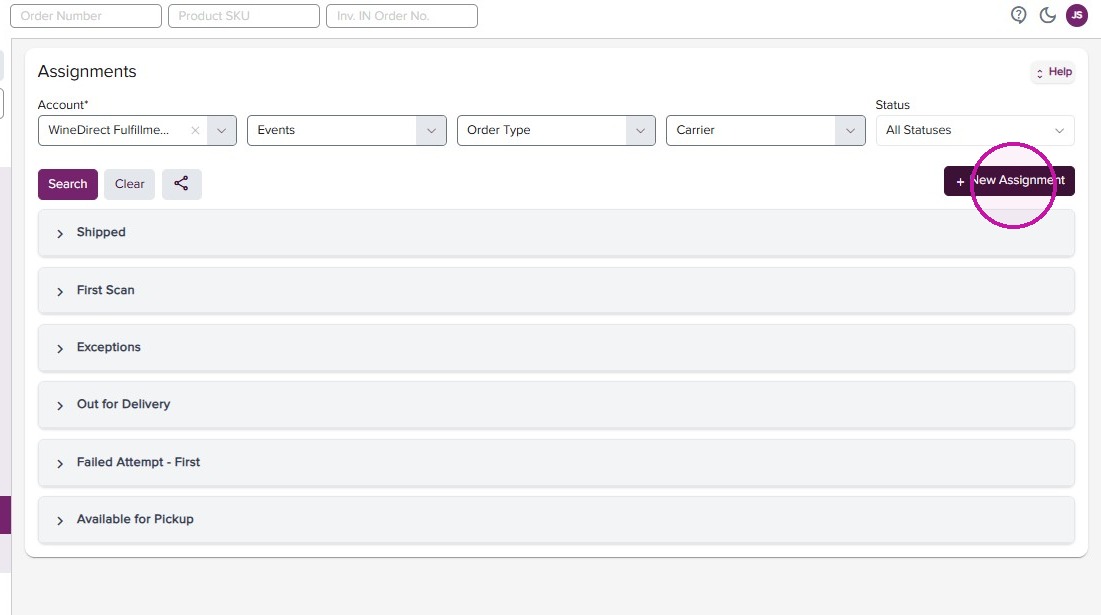
- Click “New Assignment”
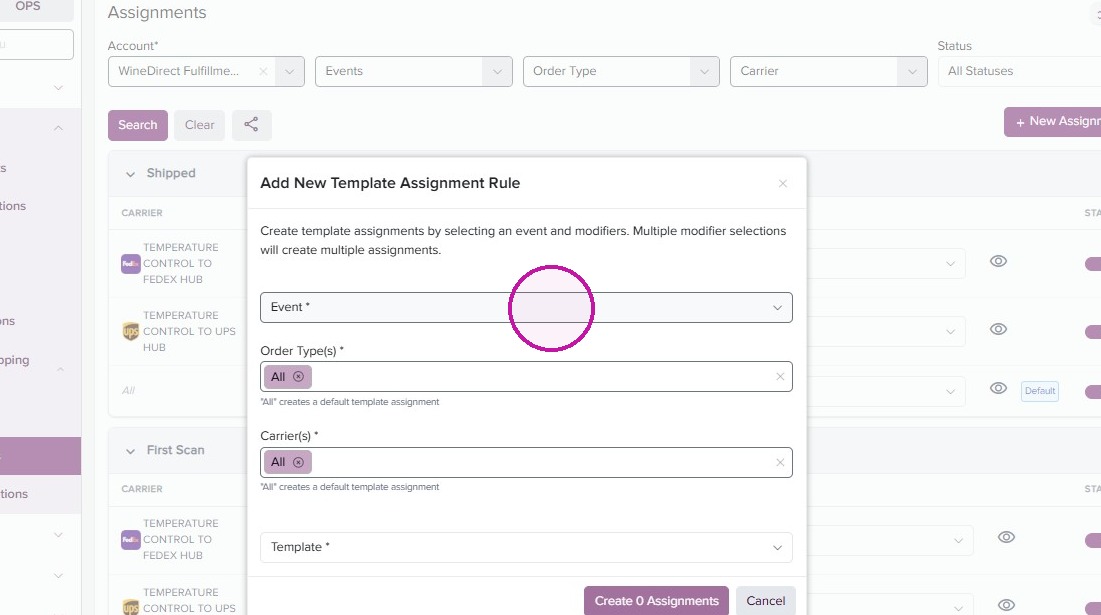
- Click the Event field.
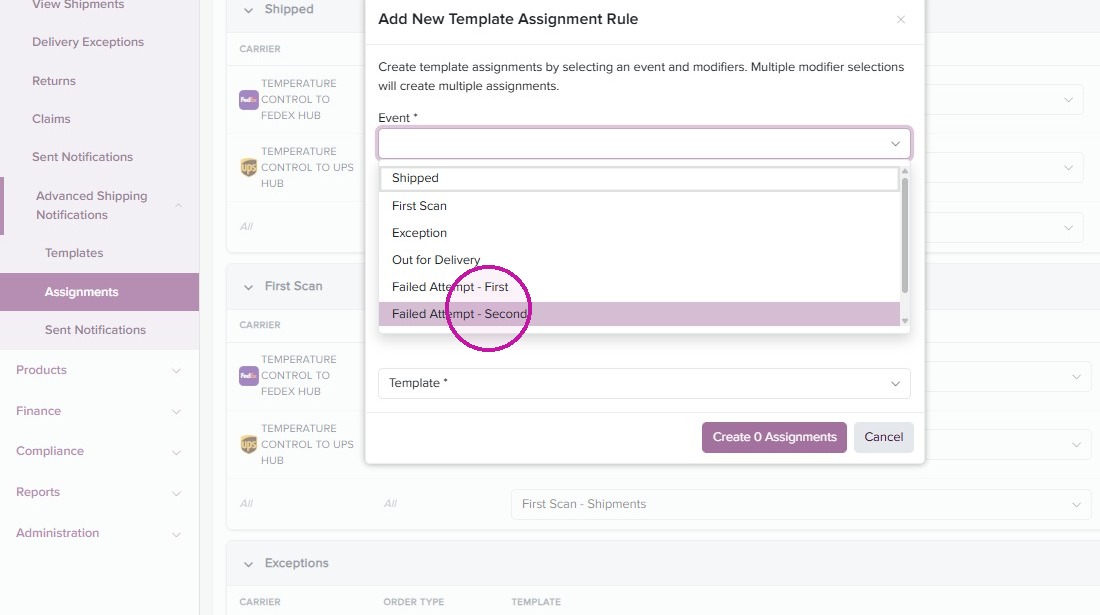
- Select the shipping event you’d like to assign.
- Select the Template you’d like to assign.
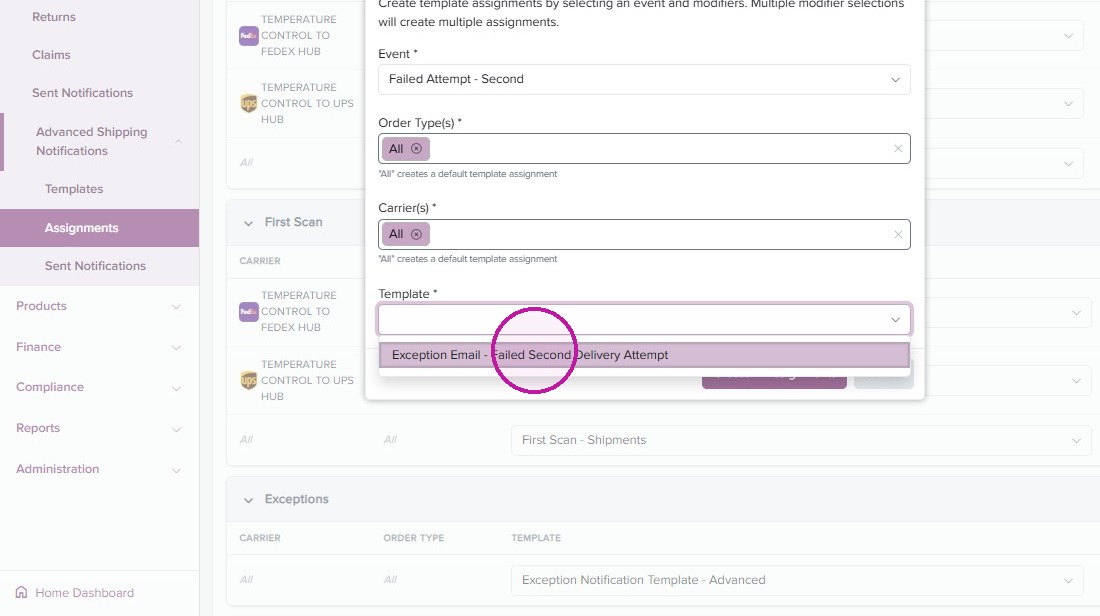
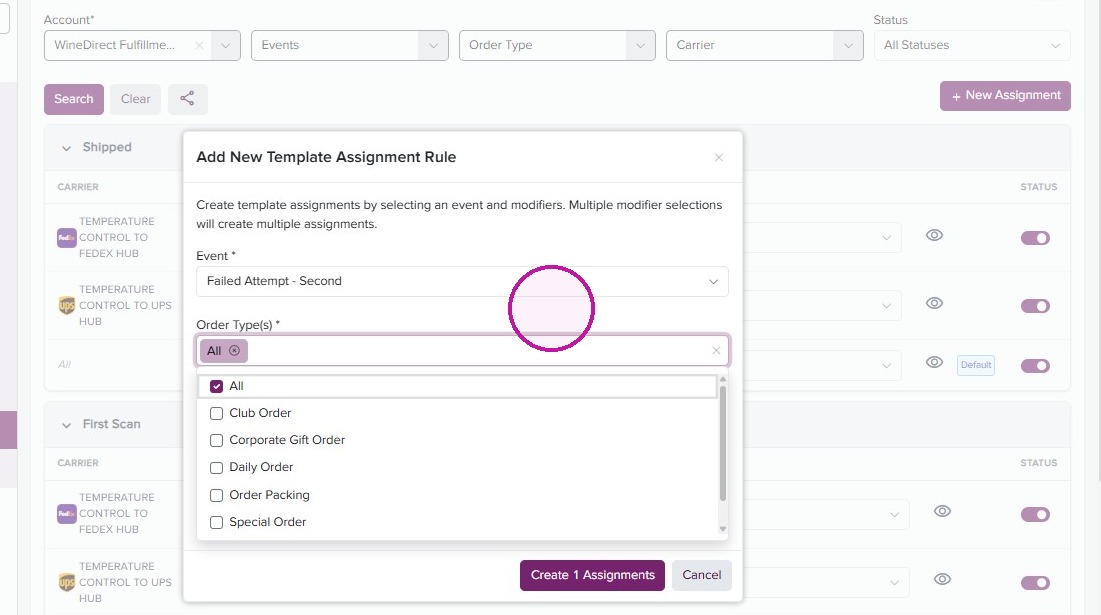
- Select specific Order Types to assign, or click “All Order Type(s) *“All” creates a default template assignment”.
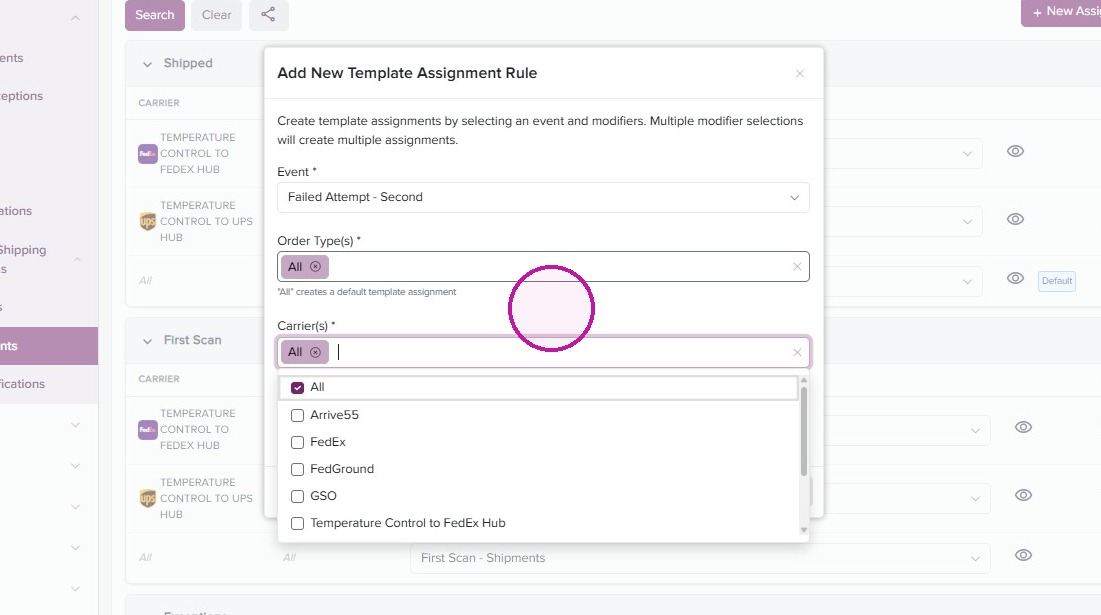
- Select specific Carriers to assign or click “All Carrier(s) *“All” creates a default template assignment”
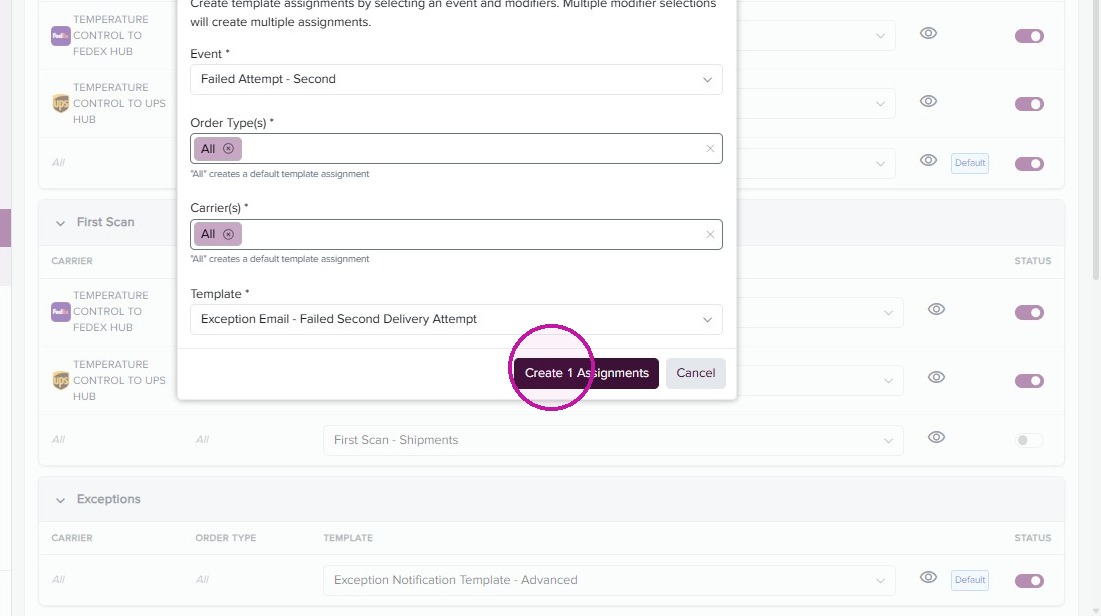
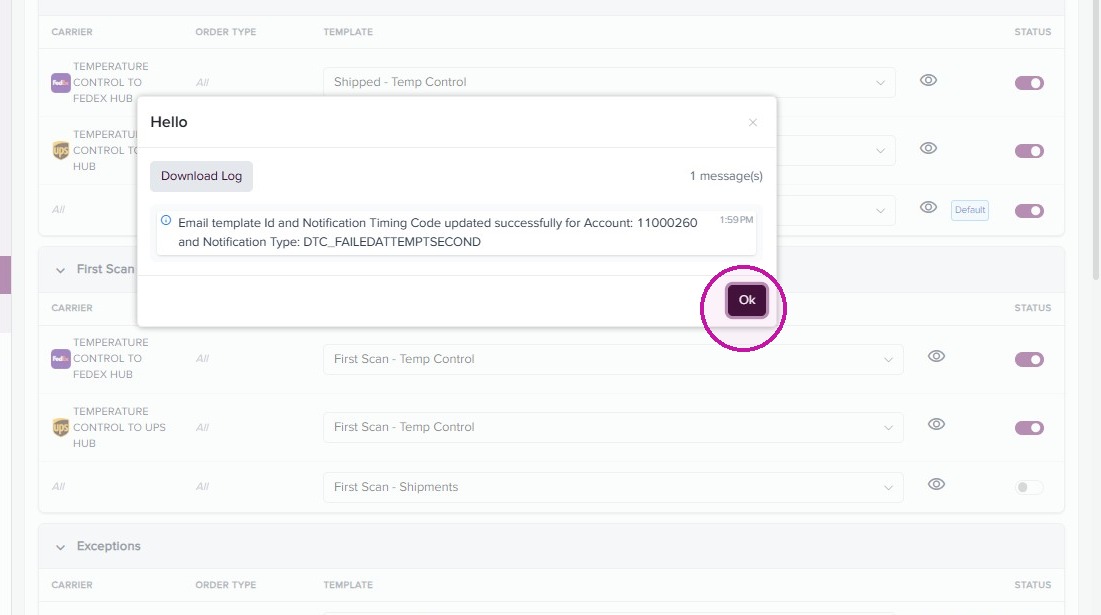
- Create your Assignment.
- Confirm by clicking “Ok”
Review and Manage Your Assignments
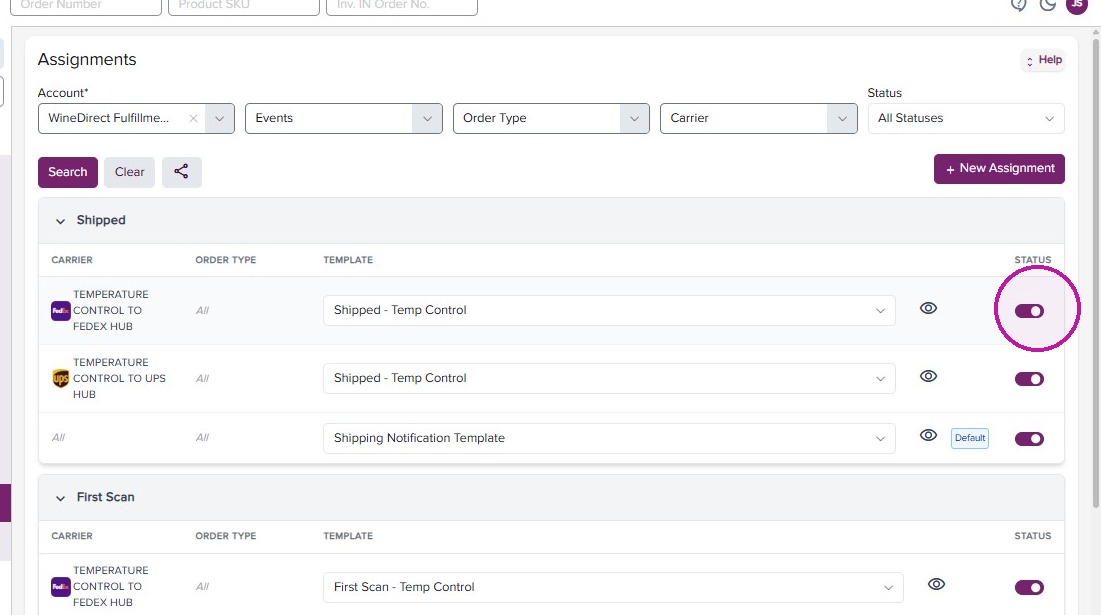
- Use the fields at the top of your menu to filter your completed Assignments.
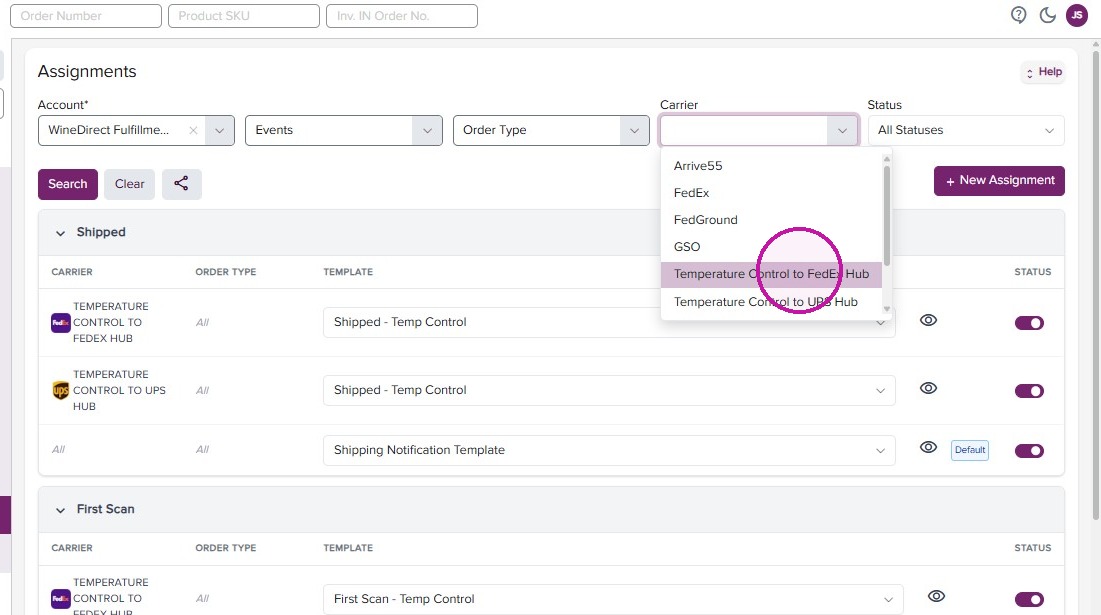
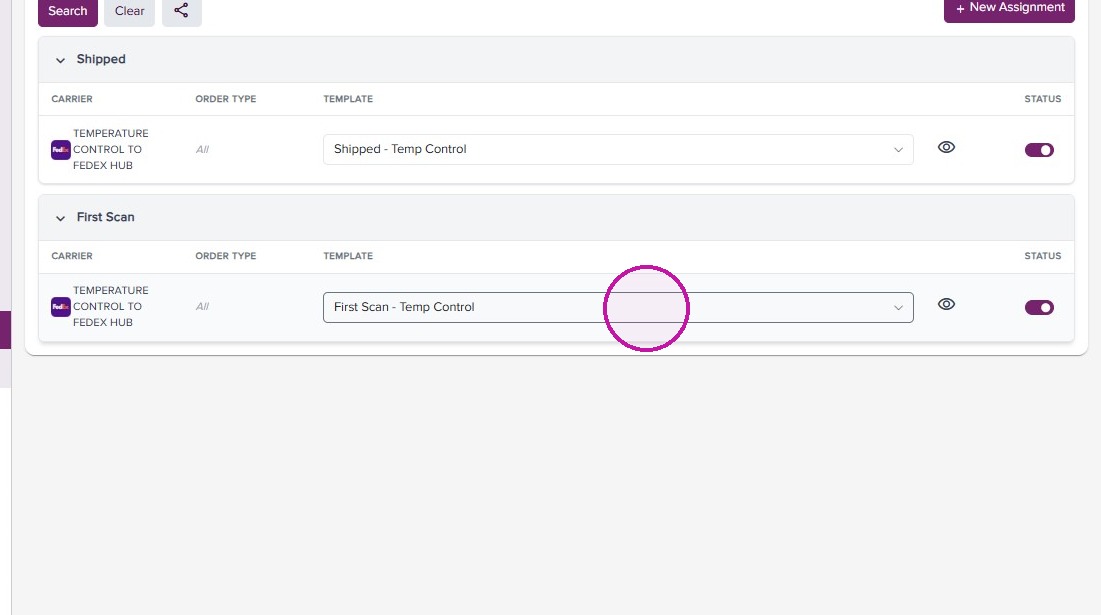
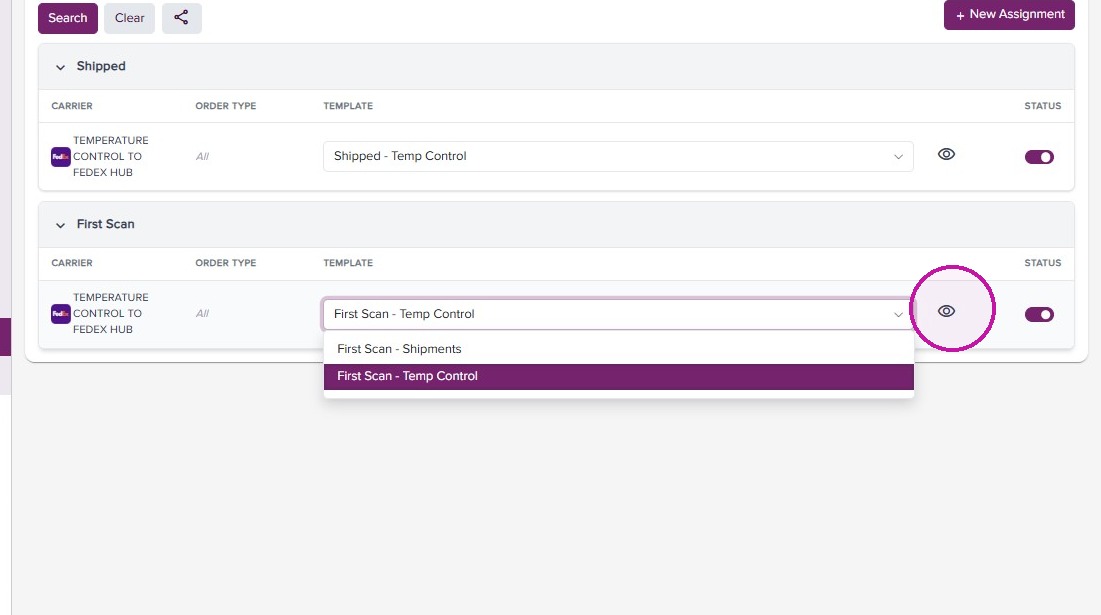
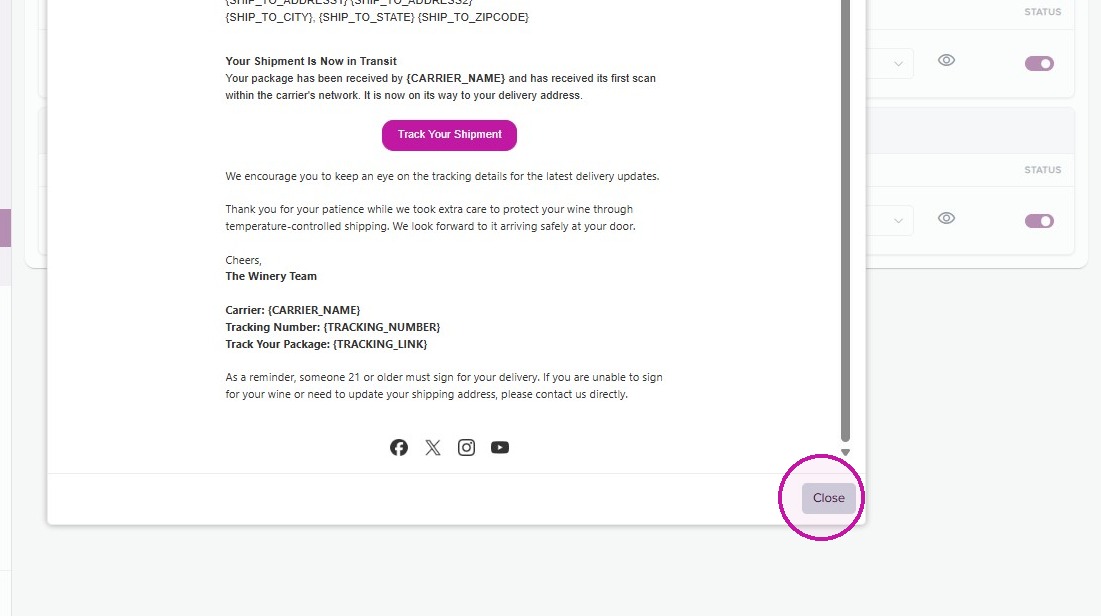
- Within the Assignment view, you can use the dropdown to change the template assignment, use the status toggle to turn the notification on and off, or use the eye icon to preview the email template in browser.