

What is a Weather Hold?
A weather hold is the process of stopping your orders from shipping to a specific state based on the configuration of that state and start/end dates within your WineDirect Fulfillment account.Where are Weather Hold orders listed as they are created?
Weather-held orders will be consistently available for you and your team to view on the dashboard of your account. The matrix will update every 10 minutes, giving you a consistent breakdown of all orders under this specific hold.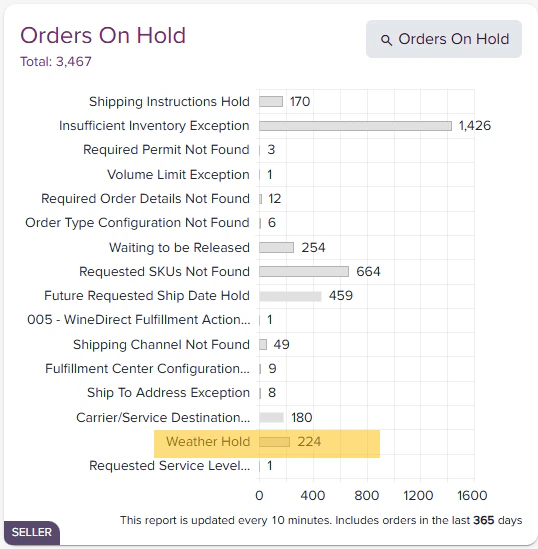
How are the states and dates configured?
You and your team have full control over the configuration and management of your weather hold orders. Weather Holds can be configured under the Manage Weather Hold feature, where a simple selection of states and dates will apply the rules needed for the tool to hold orders.Releasing Weather Hold Orders
Orders on Weather Hold can be released in several different ways: by single order, by header sort (zip code, order type, etc.), or by State. Read below to learn how to release at each level:- Releasing a Single Order from Weather Hold
- Search/Locate Order
-
Click the Release button to the right of the Order Hold action panel:

- If there is no other hold on the order, the order will resume its workflow process into fulfillment, and if released by 1 pm, the order will ship the same day.
- Click Release Weather Hold.
- Select Fulfilled From and State, or leave blank, and a report of all orders on weather hold will populate.
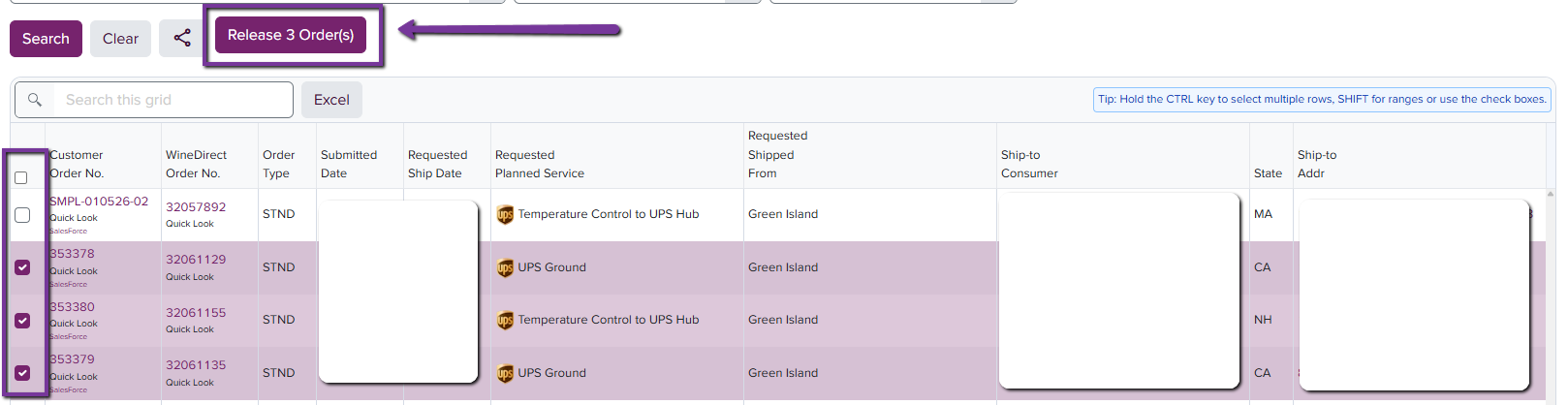
- From here, the user can sort through the list by clicking the headers to organize and sort by preference.
- Check the box to the left for all orders wishing to be released from Weather Hold.
-
Confirm release by clicking Release __ Order(s) button on page:
Tips on Weather Holds:
- States must be configured into Weather Holds before orders destined to the state are submitted into the system. If an order is submitted into the system before a weather Hold is configured, the order will not be captured on the weather hold, and a different hold will need to be used to stop the order from shipping (i.e., Shipping Instruction hold).
- Orders on Weather Hold will reserve inventory.
- If an order is on multiple holds in addition to a weather hold, releasing the weather hold will not release subsequent holds. The order will need to be checked to verify no other holds are associated with the order.